Dell M5Y1K Battery — The Ultimate Replacement & Buying Guide
Everything you need to know to pick the right Dell M5Y1K (40Wh) battery, prove your old pack
really needs replacing, install safely, and optimize for long life. Includes a reputable purchase link, model
compatibility checks, Windows and Dell diagnostics, and a pro-grade troubleshooting playbook.
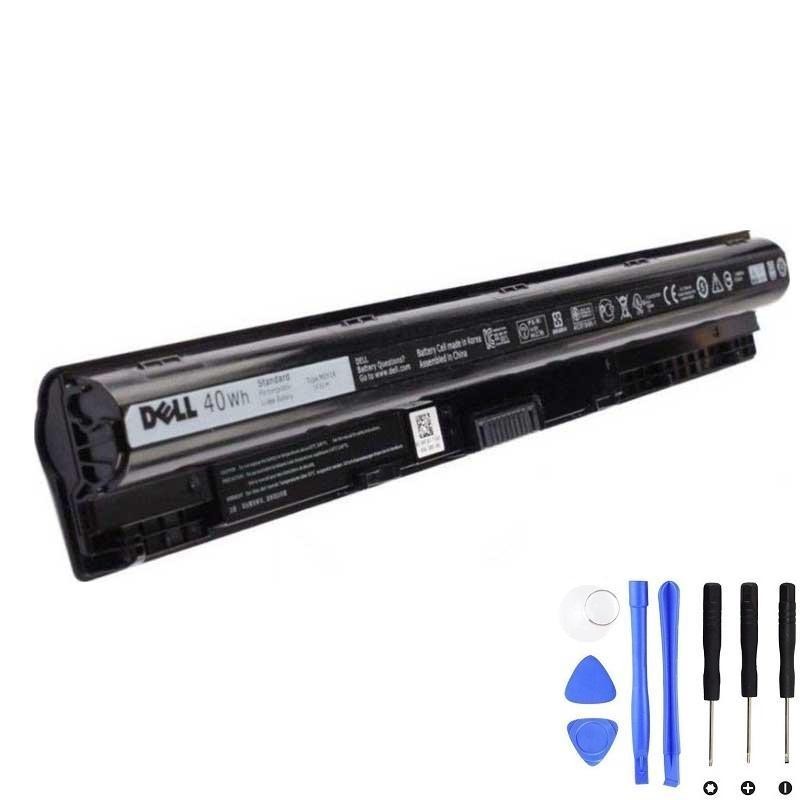
Dell M5Y1K — 40Wh Li-ion Laptop Battery
Popular 4-cell 14.8V pack for many Inspiron 3000/5000 laptops. Match the Type: M5Y1K on your original label.
Tip: Never mix voltages; always match type (M5Y1K) and voltage printed on the old battery.
What the M5Y1K Battery Is (Specs & Design)
“M5Y1K” is Dell’s battery type code for a widely used 4-cell lithium-ion pack, typically rated around
40Wh and ~14.8V. In many Inspiron notebooks from the 3000 and 5000 series, it is a user-replaceable
cartridge that slides/locks into the rear or bottom battery bay. Always confirm the exact type and voltage on your
original label before purchasing a replacement.
| Property | Typical value | Notes |
|---|---|---|
| Chemistry | Li-ion | Integrated BMS for protection & charge control |
| Capacity | ~40 Wh | Real-world runtime depends on workload & panel brightness |
| Voltage | ~14.8 V (nominal) | Match your original pack; don’t mix voltages |
| Cell count | 4-cell | Common for this platform generation |
Clear Symptoms Your M5Y1K Battery Needs Replacement
- Sudden shutdowns when AC is removed even with 20–40% remaining.
- Runtime collapse: less than an hour of light use on a “full” charge.
- Charging stuck at a fixed percentage (e.g., 59% “plugged in, not charging”) with no charge thresholds set.
- Big percentage jumps (e.g., 30% → 8%) or the gauge “yo-yo.”
- Windows Battery Report shows Full-Charge Capacity < 60–70% of Design Capacity.
- Dell Diagnostics (ePSA/SupportAssist) flags battery health as “failed.”
- Excess heat from the battery area when idle on AC.
- Physical swelling (case gap/rocking, touchpad clicks oddly). Stop using immediately and replace.
- Age alone: packs older than ~5–7 years often degrade regardless of cycle count.
Definitive Diagnostics (Windows Battery Report + Dell ePSA)
1) Generate a Windows Battery Report
- Open Command Prompt (Admin) or PowerShell (Admin).
- Run powercfg /batteryreport. Note the saved HTML path.
- Open the report and compare Design Capacity vs Full-Charge Capacity.
If FCC is <70% of design, and runtime is poor, replacement is warranted.
2) Run Dell Pre-boot ePSA Diagnostics
- Power on, tap F12 at the Dell logo → Diagnostics.
- Run the battery test; record any error & validation code.
- If the battery test fails, plan to replace the pack.
SupportAssist in Windows can also surface battery health and firmware updates.
Compatibility: Models & How to Verify by Service Tag
The M5Y1K pack appears in many Inspiron 3000/5000 laptops (e.g., several Inspiron 14/15/17 from this era). Because
sub-variants exist, the most reliable method is to check your original battery label for “Type:
M5Y1K” and/or verify parts compatibility by entering your Service Tag on Dell’s parts selector.
| Step | Action | Result |
|---|---|---|
| 1 | Power down, remove the battery safely | Read the printed type/voltage; look for “M5Y1K” |
| 2 | Check your laptop’s Service Tag (bottom label) | Use Dell’s parts tool to confirm compatible batteries |
| 3 | Match voltage and connector style | Avoid mixing 11.1V vs 14.8V packs; match your original |
Buying Checklist: Choose a Safe, Long-Life Pack
- Correct type & voltage: M5Y1K and ~14.8V for this family.
- Fresh cells & QC: Look for new stock, balanced cell packs, and reputable sellers.
- Protections: Integrated BMS (over-current, over-voltage, thermal, short-circuit).
- Warranty & returns: At least 12 months and clear DOA handling.
- Packaging: Anti-static + foam; avoid visibly damaged boxes.
If your workload is light, standard 40Wh is sensible. For heavier use, carry a second charged spare rather than chasing dubious “high-Wh” claims.
Installation: Fast & Safe Replacement
Removal (most Inspiron bay-style models)
- Shut down Windows and unplug AC.
- Press and hold the power button for 10–15 seconds (discharge residual).
- Slide the battery latch(es), pull the old pack straight out.
Install
- Align the new M5Y1K pack with the contacts; slide until it clicks.
- Connect AC and boot. Verify Windows detects the battery and begins charging.
- Let it reach 100%, then use normally (see optimization below).
Post-Install Optimization & Calibration
One gentle calibration
Charge to 100% → work normally down to low (not 0%) → charge to 100% again. This helps the fuel gauge learn the new pack. Do not deep-cycle routinely.
OS and driver hygiene
- Keep BIOS and chipset/storage drivers current.
- Use a modern power plan (Balanced/Best Power Efficiency) and dim the panel slightly.
- Turn off keyboard backlight and radios you don’t need on battery.
Windows tools that help
- powercfg /batteryreport to track capacity over time.
- Per-app battery usage (Windows Settings) to identify heavy apps.
- Hibernate for long breaks; Connected Standby can drain more than you expect if lots of apps sync.
FAQ
Is M5Y1K the same as my battery label?
Look for “Type: M5Y1K” on the printed label. If you see a different code, verify via Service Tag before buying.
Why does my battery show 40Wh but I only get a few hours?
Wh is capacity on paper. Real runtime depends on display brightness, CPU load, background apps, and battery age. Check your Battery Report and ePSA.
Do I need to “condition” new batteries?
No ritual needed—just one gentle calibration cycle for the gauge. Frequent deep cycles add wear.
Can I store a spare fully charged?
Better to store around 40–60% in a cool, dry place if unused for weeks. Top up before travel.