Is your Lenovo IdeaPad 3-15ITL6 struggling with power issues? This professional guide walks you through how to identify battery problems, confirm whether a replacement is needed, and perform the installation step by step with images. Perfect for both desktop and mobile readers.
Summary (Quick Navigation)
Common Laptop Battery Problems
Before you decide to replace the battery, it’s important to recognize the most frequent warning signs that indicate battery failure. If you are experiencing two or more of these issues, replacement is strongly recommended.
| Problem | Customer Experience | Why It Matters |
|---|---|---|
| Fast draining battery | Laptop shuts down within 1–2 hours of use. | Indicates reduced capacity and worn cells. |
| Overheating | Battery area feels hot even under light use. | Overheating accelerates damage and can be unsafe. |
| Charging issues | Battery stuck at certain % or not charging at all. | Faulty charging circuit or degraded battery cells. |
| Swollen battery | Bottom cover bulging or trackpad clicking abnormally. | Serious risk—battery must be replaced immediately. |
| Unexpected shutdowns | Laptop powers off even at 20–40% battery level. | Battery unable to provide stable voltage. |
| Battery not detected | System shows “No battery detected.” | Internal battery failure or disconnection. |
Battery Problem Diagnosis Checklist
Selected Issues: 0
⚠️ Warning: Your laptop battery should be replaced immediately!
Step 1: Remove Lower Case
Turn your Lenovo IdeaPad 3-15ITL6 face down on a flat surface before beginning.
- Remove ten (10) M2 x 2.5 screws from the lower case.

- Using a small pry tool, gently disconnect the clips around the edge and lift the lower case away.

Step 2: Remove Battery Pack with Storage Drive
If your laptop includes a storage drive battery configuration (Lenovo L20L2PF0 – 38Wh):
- Remove two (2) screws from the battery pack.

- Lift and carefully remove the battery pack from the system.

Step 2: Remove Battery Pack without Storage Drive
If your laptop is configured without a storage drive battery (Lenovo L20M3PF0 – 45Wh):
- Remove six (6) screws from the battery pack.

- Lift and carefully remove the battery pack from the system.

Where to Buy Replacement Batteries
Choose the correct replacement battery for your Lenovo IdeaPad 3-15ITL6:
| Model | Capacity | Image | Buy Link |
|---|---|---|---|
| Lenovo L20L2PF0 | 38Wh – For laptops with storage drive | 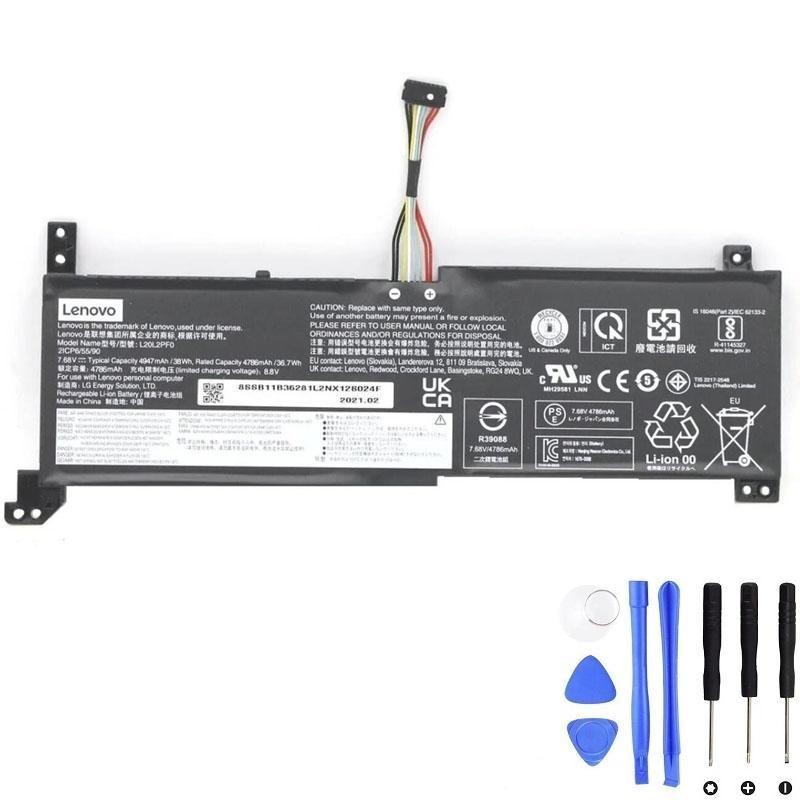 |
Buy Now |
| Lenovo L20M3PF0 | 45Wh – For laptops without storage drive | 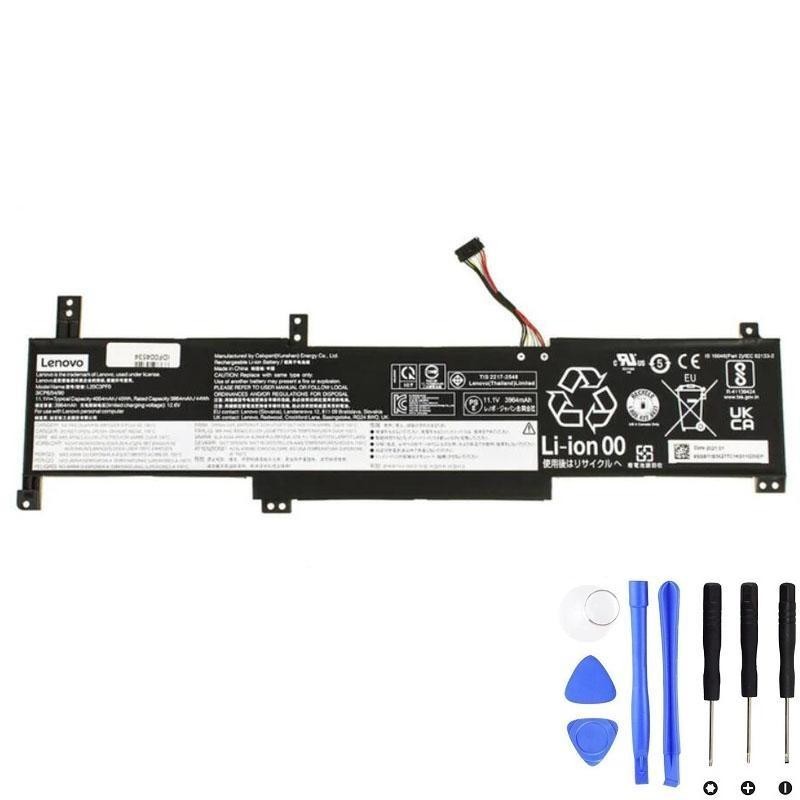 |
Buy Now |
Final Tip: After installation, always perform a full charge cycle (100% → discharge → recharge) to optimize the new battery performance.