HP Envy x360 14-fa0000nb Battery Replacement (HP GD03XL, 59.16Wh) – Full DIY Guide
From first symptoms to verification and a safe, step-by-step replacement for the HP Envy x360 Laptop 14-fa0000nb (9Z0L6EA) and any HP model that uses the HP GD03XL battery (59.16Wh, 4854mAh, 11.58V – N66215-005-001). Click a section in the summary to jump straight to it.
⚡ Battery Problem Diagnosis Checklist (Quick Quiz)
- 🔋 Sudden shutdowns while Windows still shows remaining charge.
- ⚠️ Battery % stuck, jumps wildly, or “0% available (plugged in, not charging)”.
- 🔌 Laptop only runs when the charger is connected.
- ⏱️ Runtime has dropped to < 60 minutes under light use.
- 🔥 Battery gets hot, swells, or shows visible deformation/damage.
If 2+ apply, proceed to Step 1 – Verify Battery Health and plan a replacement.
Summary (Clickable Navigation)
- Common Battery Issues (HP Envy x360 & GD03XL)
- Step 1 – Verify Battery Health
- Step 2 – Tools, Parts & Safety
- Step 3 – Remove the Bottom Cover
- Step 4 – Remove the HP GD03XL Battery
- Step 5 – Install the New Battery
- Step 6 – Reassemble & First Power-On
- Step 7 – Calibrate & Optimize Battery
- FAQ & Compatibility
Common Battery Issues (HP Envy x360 & GD03XL)
- Fast drain despite full charge; capacity reported far below design spec.
- Random shutdowns or sleep/resume failures at 10–40% remaining.
- “No battery detected” or charger status anomalies.
- Device only works on AC power; won’t start on battery.
- Thermal symptoms (hot to touch), swelling, or case separation.
Step 1 – Verify Battery Health
- In Windows, run
powercfg /batteryreport(Command Prompt as admin). Open the generated HTML to compare Design Capacity vs Full Charge Capacity. - Run HP Support Assistant → Battery Check to confirm health status (e.g., Replace, Weak).
- Visually inspect the chassis for warping or a raised touchpad (possible swelling). If swelling is present, do not charge or press on the case.
Step 2 – Tools, Parts & Safety
- Replacement Battery: HP GD03XL (59.16Wh, 4854mAh, 11.58V – N66215-005-001)
- Drivers: Torx T5; Phillips #00.
- Pry Tool: Thin plastic spudger (no metal edges).
- Anti-static: ESD wrist strap or frequent grounding.
Critical Safety: Do not puncture, crush, bend, or short contacts. Keep metal tools away from battery terminals. If the battery looks swollen, do not compress the cover to close it—replace immediately and handle with care.
Step 3 – Remove the Bottom Cover
- Shut down Windows and unplug the AC adapter. Place the laptop upside down on a flat, static-free surface with the front edge toward you.
- Remove the four Torx T5 M2.0 × 6.6 screws securing the bottom cover.
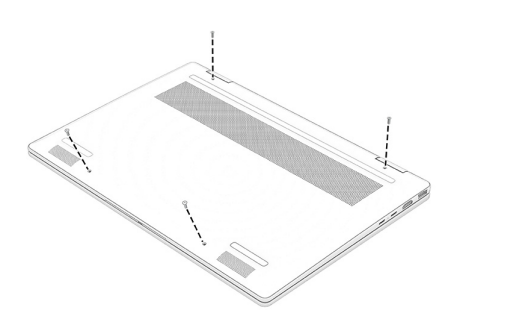
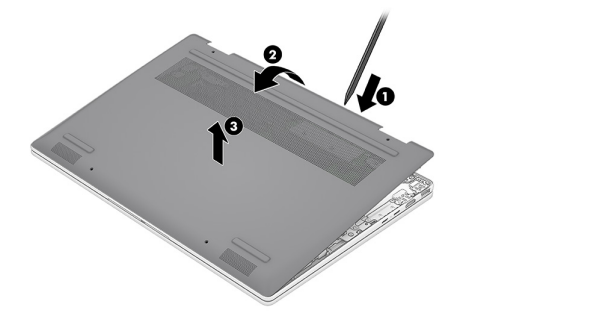
- Insert a thin plastic tool at the rear edge of the bottom cover to release the clips—avoid metal tools to protect the finish and battery.
- Swing the rear edge up and forward, then lift off the cover.
Step 4 – Remove the HP GD03XL Battery
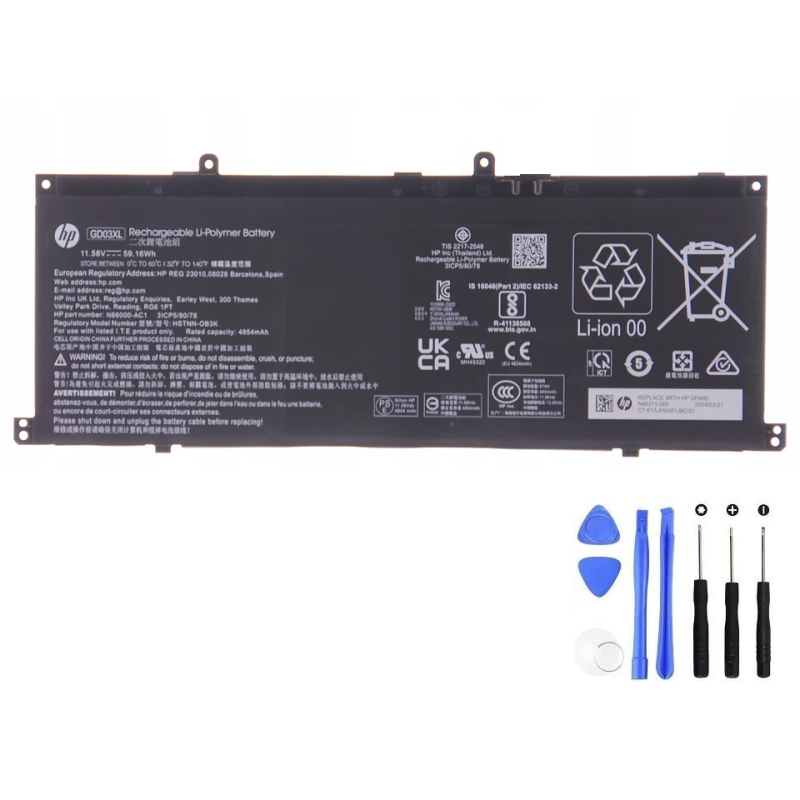
Battery Specification: HP GD03XL • 59.16Wh • 4854mAh • 11.58V • Spare/FRU: N66215-005-001
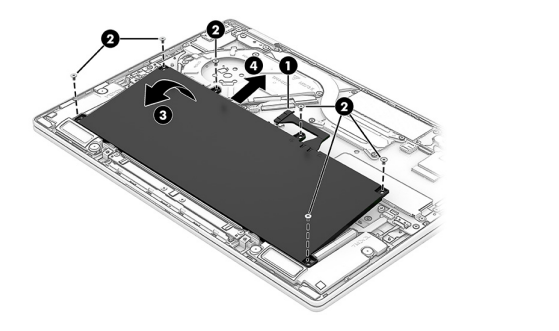
- Disconnect the battery cable from the system board by gently rocking the connector; pull evenly—do not yank on wires.
- Remove the six Phillips M2.0 × 3.9 screws securing the battery to the chassis.
- Swing the rear edge of the battery up and forward until it rests at an angle.
- Slide the battery up and away from the board and lift it out.
Handling Warnings: Do not pierce, twist, or compress the pack; avoid metal contact with the connectors; keep screws and tools off the battery surface.
Step 5 – Install the New Battery
- Slide the new HP GD03XL into position at a slight angle so tabs align.
- Lower the pack and install the six Phillips M2.0 × 3.9 screws. Tighten evenly—snug, not overtight.
- Reconnect the battery cable firmly to the system board (check for a fully seated connection).
Step 6 – Reassemble & First Power-On
- Align the bottom cover from the front edge; swing down and press along the perimeter to engage clips.
- Install the four Torx T5 M2.0 × 6.6 screws.
- Turn the laptop upright, connect the AC adapter, and power on.
- Boot into Windows and confirm the battery is detected and charging.
Step 7 – Calibrate & Optimize Battery
- Charge to 100%, then keep charging for an extra 30–60 minutes.
- Use on battery to ~10–20%, then recharge to 100%. Repeat once to stabilize reporting.
- Install all HP/Windows updates and run HP Support Assistant → Battery Check again.
FAQ & Compatibility
Which battery does this guide use?
HP GD03XL Battery – 59.16Wh, 4854mAh, 11.58V (N66215-005-001)
What models does this apply to?
This process applies to the HP Envy x360 Laptop 14-fa0000nb (9Z0L6EA) and other HP laptops that use the GD03XL battery pack (same mounting points and connector). Always confirm your exact model and battery part number before ordering.
Do I need any special tools?
Yes: Torx T5 and Phillips #00 screwdrivers, plus a thin plastic pry tool. An ESD strap is recommended.
Important data warning
Removing the battery—the sole power source—can cause data loss if the system is not fully shut down. Save your work and perform a full shutdown before beginning.
HP GD03XL Compatibility (Auto-Built)
This section auto-builds a searchable compatibility index and series-level (family) blocks for Google-friendly coverage.
HP GD03XL Battery Compatibility – Master Model List
Model Family Index (SEO-Optimized Series Keywords)
Grouped by family stem (e.g., 16-af000x). Each block targets a combined keyword while retaining every exact SKU for long-tail matches.