“XPS 15 9530” actually refers to two different hardware generations. The newer P91F / P91F004 / P91F005 layout uses a modern thin internal pack (e.g., P0FWH 90Wh), while the legacy, End-of-Life P31F / P31F001 platform from earlier years used either a 61Wh (T0TRM) or a 91Wh (245RR) battery.
Before you buy: confirm your exact platform code (P91F or P31F) and/or your battery part number (P/N) and then search our store to find the right match.
Batteries for Dell XPS 15 9530

P0FWH 90Wh (M9DG0/HGJCY) — For XPS 15 9530 P91F*
Modern thin-pack used in the latest 9530 layout (P91F series). Always match P/N.
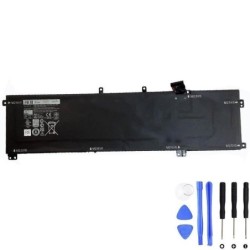
245RR 91Wh — For XPS 15 9530 (EOL) P31F*
High-capacity option for the earlier P31F layout. Verify by platform code and P/N.
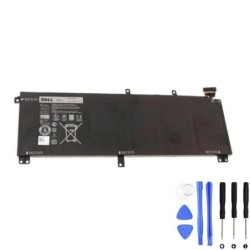
T0TRM 61Wh — For XPS 15 9530 (EOL) P31F*
Standard-capacity pack for the P31F generation. Match by exact P/N on label.
*Tip: Your platform code (e.g., P91F or P31F) is often printed on the laptop bottom or shown in BIOS. You can also open the chassis to read the original battery label (P/N).
Why are there two “XPS 15 9530” generations?
Dell reused the “9530” naming across very different internal layouts. The P31F (legacy) machines are from earlier years and reached End-of-Life; they used either 61Wh or 91Wh batteries with a different chassis footprint.
The P91F (new) 9530 is the latest family design with a thin, wide internal pack around 90Wh. Batteries are not cross-compatible between P31F and P91F.
XPS 15 9530 variants & their matching batteries
| Variant | Platform code | Battery options (P/N) | Notes | Buy |
|---|---|---|---|---|
| XPS 15 9530 (new) | P91F / P91F004 / P91F005 | 90Wh — P0FWH | Thin wide pack; modern internal layout. Always match by P/N and platform code. | P0FWH 90Wh |
| XPS 15 9530 (legacy, EOL) | P31F / P31F001 |
91Wh — 245RR 61Wh — T0TRM |
Earlier chassis; 61Wh vs 91Wh are different assemblies. Match by P/N on your original battery. |
245RR 91Wh · T0TRM 61Wh |
How to confirm your exact 9530 version
- Check the platform code on the bottom cover or in BIOS: P91F (new) vs P31F (legacy/EOL).
- Read the battery label on your current pack: look for P/N such as P0FWH, 245RR, or T0TRM.
- Use Dell’s Service Tag on the support site to view originally configured parts.
- Search our store with your P/N or “XPS 15 9530 P91F” / “9530 P31F” to land on the right listing.
DIY overview (both platforms)
Skill: intermediate. If the battery is swollen or your device is under warranty, use professional service.
- Shut down, unplug the charger and all accessories. Work on a clean, hard surface.
- Remove bottom cover (Torx T5 on newer chassis); keep track of screw lengths/positions.
- Disconnect the battery connector from the motherboard (remove any brackets/shields first).
- Unscrew and lift out the old pack; place the new battery, align, and re-install screws.
- Reconnect, reassemble, then perform 1–2 full charge/discharge cycles to help the OS re-estimate capacity.
Ready to order? Pick the battery that matches your platform
Still unsure? Leave your full model/platform code or battery P/N in the checkout notes and
our team will double-check compatibility before shipping.
P0FWH 90Wh — For 9530 P91F
245RR 91Wh — For 9530 P31F