If your Latitude E6440 is losing runtime or throwing charging errors, the Type T54FJ 60Wh class pack is one of the most common replacements for this platform. This guide shows you how to confirm compatibility, choose the right pack, install it safely, and verify the results in Windows.
Buy Dell T54FJ 60Wh Battery →
Skip to Installation
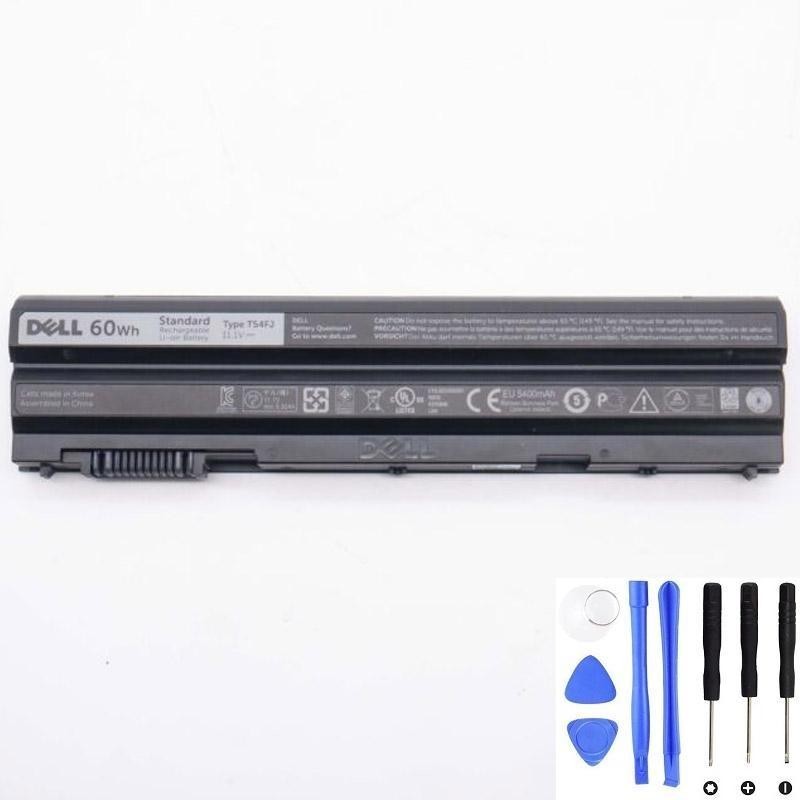
At-a-glance: what to know
- Part to look for: Type T54FJ on the battery label (and match voltage on your original).
- Capacity class: 60Wh. Expect ~2–6 hours of real-world runtime depending on workload and screen brightness.
- Fit: Designed for the Latitude E6440 chassis footprint. Always confirm the connector and screw pattern.
- Install: User-serviceable with small screwdrivers and a plastic opening pick; see the guide below.
How to confirm compatibility (T54FJ)
- Shut down the E6440 and unplug the charger.
- Flip the laptop and remove the battery (rear latch). If your pack is internal or stuck, follow the service steps below.
- Read the label. Look for the “Type” line (e.g., T54FJ). Also note the Voltage (V) and Capacity (Wh).
- Match that Type when ordering. If you can’t remove the pack, use the exact model (Latitude E6440) and compare product images/connector shape carefully.
Tip: Part number beats marketing names. “Latitude E6440” can ship with multiple battery options across regions; the label is the source of truth.
Specs overview
| Parameter | What it means | What to check |
|---|---|---|
| Type | Manufacturer code for the physical pack | Should read T54FJ on your original label |
| Capacity | Energy in watt-hours (Wh) | 60Wh class for this product |
| Voltage | Nominal system voltage | Match the voltage printed on your original pack (do not mix platforms) |
| Connector & fit | Mechanical & electrical interface | Must match the E6440 bay; compare product photos carefully |
| Cells & chemistry | Li-ion, multi-cell | New, unused cells; avoid refurbished packs with unclear cycle counts |
Original vs third-party: which should you buy?
OEM (Dell-branded) packs are the low-risk choice but often cost more. A reputable third-party T54FJ with the right voltage/connector and a clear 12-month warranty offers strong value. Avoid “ultra-cheap, no-spec” listings—poor cells cost more in the long run.
Can I use a higher-capacity battery?
Often, yes—if the higher-Wh pack is designed for the Latitude E6440 bay and keeps the same voltage and connector. Some families also offer extended batteries that protrude from the rear. Always verify physical fit for your chassis and use case (e.g., travel bags, docking).
11.4V vs 15.4V — are they interchangeable?
No. Different nominal voltages reflect different internal cell configurations. Always match the voltage printed on your original T54FJ label; don’t substitute across platforms with different voltage families.
DIY vs repair shop: typical costs
| Scenario | Parts | Labour | Typical total |
|---|---|---|---|
| DIY (T54FJ 60Wh) | Market price varies | — | Lowest cost; you install it yourself |
| Local repair shop | Market price | Service fee | Higher, but includes diagnostics & fitting warranty |
Step-by-step installation (Latitude E6440)
- Power down the laptop and unplug the AC adapter.
- Flip the E6440. Slide the rear latch to release the battery and remove it straight out.
- Inspect the bay and connector for dust/debris; gently clean if needed.
- Seat the new T54FJ pack, align the rails, and press until it clicks.
- Reconnect AC and boot. Confirm the battery icon shows charging.
- (Optional) In BIOS, check Battery Information to verify the new pack is recognised.
If your unit has an internal-style pack or secondary battery configuration, follow the official service manual steps with PH0/PH00 screwdrivers and a plastic opening pick.
Post-install: battery report & BIOS health settings
Generate a Windows battery report
- Open an elevated Command Prompt (Run as Administrator).
- Run
powercfg /batteryreportand open the generated HTML path shown in the console. - Compare Design Capacity vs Full Charge Capacity; check Cycle Count and recent usage.
Enable longevity-friendly charging
Many business-class Dells offer charge behaviour controls in BIOS/UEFI. Choose a mode that reduces time at 100% when plugged in (adaptive/primarily AC use) to slow long-term wear.
“Plugged in, not charging” — quick fixes
- Use the correct adapter: Match Dell’s rated wattage; under-powered or generic chargers can won’t keep up under load.
- Inspect the DC-in jack & cable: Clean debris; check for bent pins or loose fit.
- Reseat the battery: Power off → remove & reinstall T54FJ → try again.
- Update firmware/drivers: BIOS & chipset for your exact E6440 SKU.
- Windows battery drivers: In Device Manager → Batteries, uninstall “Microsoft AC Adapter” and “Microsoft ACPI-Compliant Control Method Battery,” then reboot.
- EC reset: With AC unplugged, hold the power button 10–15 seconds to discharge residual power; reconnect and test.
Swelling & safety
If your old battery looks puffy, smells, or runs hot at idle, treat it as a safety issue. Power down, remove the pack carefully, and do not puncture or compress it. Replace with a new T54FJ and recycle the old pack at an authorised e-waste point.
Is keeping it plugged in all day bad?
Being plugged in isn’t harmful by itself. Heat + long periods at 100% accelerate aging. Keep vents clear and enable a BIOS charging mode that favours longevity if your E6440 spends most of its life on AC.
Recycling & shipping notes
- Recycle: Use council e-waste points, retailer take-back, or national battery programmes. Never bin lithium batteries.
- Shipping: Lithium packs are regulated. Undamaged, properly packed batteries that meet carrier rules may be shipped; damaged or swollen packs are prohibited.
FAQ
How long does a new T54FJ 60Wh battery last?
Under mixed office use, expect 2–6 hours depending on workload, brightness, and background apps. Over time, all lithium-ion batteries lose capacity.
Do I need to “calibrate” a new battery?
Not like old nickel chemistries. After install, let it reach 100% once, then use normally. If the gauge seems off, do one gentle cycle: discharge to ~20–30%, then charge to 100%.
Will replacing the battery void my warranty?
For out-of-warranty units, no issue. If you still have coverage, check your service terms; professional fitting maintains documentation and can simplify future claims.
Where can I buy a compatible pack?
Here’s a vetted listing with clear specs and images: Dell T54FJ 60Wh Battery.