If your Dell Inspiron 7506 2-in-1 no longer holds a charge, the 3HWPP (68Wh) battery is a common direct replacement.
This guide shows you how to verify compatibility, choose the right pack, install it safely, run a Windows battery report, adjust BIOS battery-health settings, and fix typical charging issues.
Buy 3HWPP 68Wh Battery →
Skip to Installation
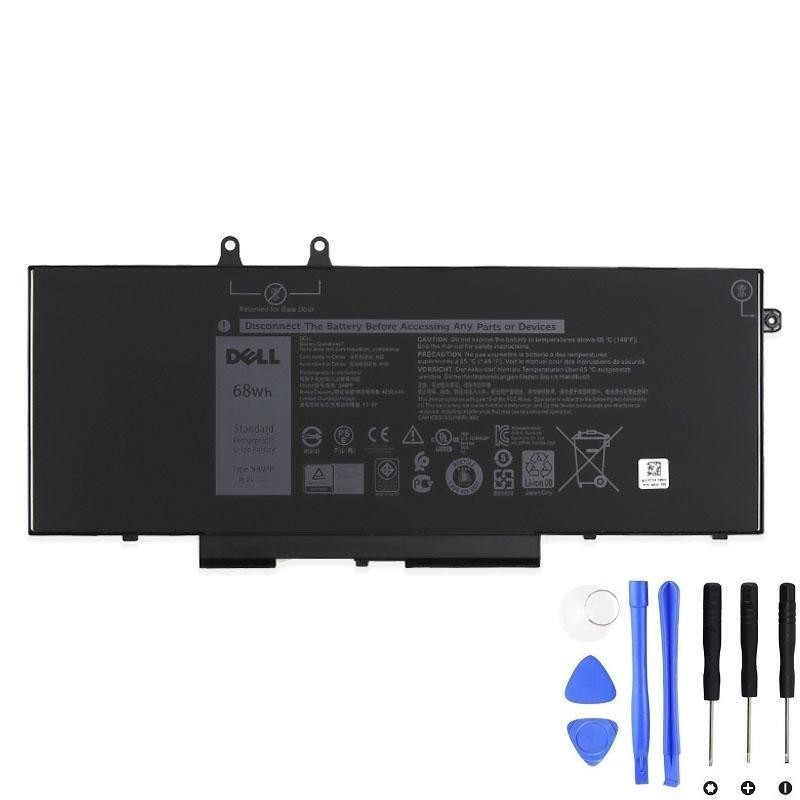
At-a-glance
- Model focus: Dell Inspiron 7506 2-in-1 (convertible).
- Battery type: 3HWPP replacement battery, 68Wh capacity.
- Fit style: Internal, screw-mounted pack — user-replaceable with care.
- What to match: Type code (3HWPP), connector position, outline & screw holes, and nominal voltage family printed on your original label.
How to confirm compatibility
- Power down the laptop and unplug the AC adapter.
- Remove the bottom cover (details below) to read the sticker on your battery.
- Verify the Type (e.g., 3HWPP) and note the nominal voltage and capacity.
- Compare connector location, cable orientation, outline, and screw holes with the product photos.
- When ordering, match the Type and voltage family printed on your original pack. Do not interchange different voltage families.
Tip: Series names alone (e.g., “Inspiron 15”) can cover multiple battery shapes. The type sticker and physical layout are the source of truth.
Key specs (3HWPP 68Wh)
| Parameter | Detail | Why it matters |
|---|---|---|
| Type code | 3HWPP | Ensures the correct battery family for Inspiron 7506 2-in-1 |
| Capacity | 68Wh | Higher Wh → longer runtime (same voltage/fit) |
| Nominal voltage | See your original label | Must match your system’s voltage family; do not mix with other families |
| Mounting | Internal, screw-mounted | Bottom cover removal required; straightforward with the right tools |
| Chemistry | Lithium-ion | Standard for modern laptops; follow safety guidance |
Tools you’ll need
- Torx driver (commonly T5) and small Phillips (PH0/PH00)
- Plastic opening pick/spudger (avoid metal prying on the chassis)
- ESD strap or a static-safe work surface (recommended)
- Small container for screws (they can vary by length)
Step-by-step installation (Inspiron 7506 2-in-1)
- Shut down Windows, unplug AC, and hold the power button for 10–15 seconds to discharge residual power.
- Remove the bottom cover: Undo all visible screws (note positions/lengths). Use a plastic pick around the edges to release clips; gently lift off the panel.
- Disconnect the battery: Pull the battery connector by its housing (not the wires). If there’s tape, peel it back carefully.
- Remove the old pack: Unscrew battery fasteners and lift the pack out without bending it.
- Install the new 3HWPP (68Wh): Seat it flat, align screw holes, fasten evenly, and fully reseat the connector.
- Reassemble: Replace the bottom cover, press clips back evenly, and reinstall screws.
- Power & verify: Connect AC, boot, and confirm Windows shows the battery is detected and charging.
If your old battery is swollen, do not pry it out with force. Power down and seek professional help.
After installation: battery report & BIOS settings
Generate a Windows battery report
- Open an elevated Command Prompt (Run as Administrator).
- Run
powercfg /batteryreport. - Open the generated HTML and compare Design Capacity vs Full Charge Capacity; review Cycle Count and recent usage.
Enable longevity-friendly charging
- In Dell BIOS/UEFI (Battery settings), pick Adaptive or Primarily AC Use if you keep the laptop plugged in for long periods. These modes reduce time spent at 100% to slow aging.
- Keep vents clear and avoid heavy workloads while charging to limit heat.
“Plugged in, not charging” — quick fixes
- Charger sanity check: Use a Dell-rated adapter with the correct wattage; inspect the DC-in port/cable for debris or bent pins.
- Reseat battery connector: Power off, reopen the cover, and press the connector in firmly and squarely.
- Firmware & drivers: Update BIOS, chipset, and power management for your exact 7506 SKU.
- Windows battery drivers refresh: Device Manager → Batteries → uninstall “Microsoft AC Adapter” and “Microsoft ACPI-Compliant Control Method Battery” → reboot.
- EC reset: With AC unplugged, hold the power button 10–15s; reconnect and test.
If the issue persists, a failing DC-in jack or charging IC may need professional diagnosis.
Care, runtime & plugged-in habits
- Keep it cool: Use the laptop on a hard surface; clean vents periodically.
- Avoid living at 100% under heat: That combo accelerates aging. Prefer longevity-minded BIOS modes when docked.
- Everyday use: It’s fine to charge to 100% occasionally; you don’t need routine deep cycles to 0%.
- Storage (weeks): Power down around 40–60% and store in a cool, dry place. Check every couple of months.
Safety, swelling, recycling & shipping
- Swelling/odor/heat at idle: Power down immediately. Do not puncture, bend, or continue using a compromised pack.
- Recycle properly: Use local e-waste/battery collection points or retailer take-back schemes. Never dispose of lithium batteries in household bins.
- Shipping: Lithium batteries are regulated. Only ship undamaged batteries per carrier rules (e.g., UN 38.3-tested types, proper packing/marking). Damaged/swollen batteries are prohibited in the post.
FAQ
Are different voltage families interchangeable?
No. Always match the nominal voltage printed on your original label. Do not substitute across voltage families.
Do I need to calibrate the new 3HWPP battery?
Not routinely. After installation, let it reach 100% once while idle. If the gauge seems off later, do one gentle cycle (~20–30% → 100%). Avoid frequent deep 0–100% cycles.
How long will a 68Wh pack last on a charge?
It depends on workload, brightness, and apps. Typical office use can see multiple hours; video editing, gaming, or many background apps reduce runtime.
Where can I buy the correct battery?
Use this listing with clear specs and photos:
Dell 3HWPP 68Wh Battery •
Full-size image.