If your Dell laptop uses a WDX0R (42Wh) battery and it drains very quickly even after charging to 100%, the cause is usually one of two things:
- The battery is worn (100% is “full” relative to today’s reduced capacity), or
- The laptop is using more power than expected (apps, settings, drivers, or hardware behavior).
This guide helps you identify which one is happening and gives you a clear troubleshooting path.
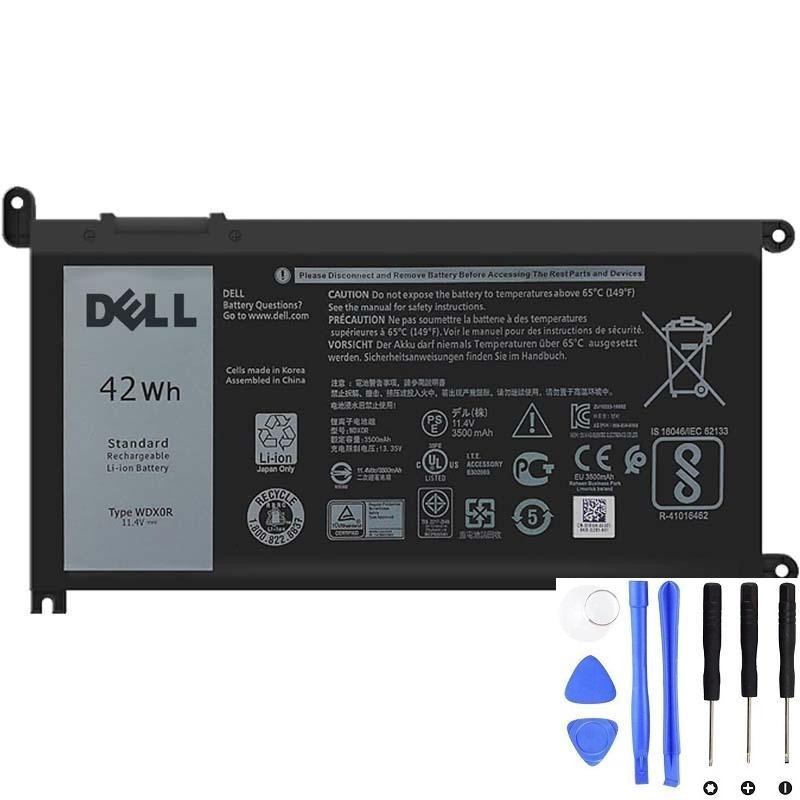
If battery health is low, replacement is often the fastest fix.
1) First: understand why “100%” can still drain fast
“100% charged” does not mean “like new.” It means the battery is full relative to its current maximum capacity. If the WDX0R battery has aged, its full charge capacity may be much lower than when new—so it reaches 100% quickly and drains quickly.
2) The best proof: check battery health with a Windows battery report
- Right-click Start → Terminal (Admin) / Command Prompt (Admin)
- Run:
powercfg /batteryreportOpen the report and compare:
- DESIGN CAPACITY (new battery)
- FULL CHARGE CAPACITY (today’s maximum)
Simple interpretation:
- 85–100% of design: battery health is generally OK (look for power-drain causes)
- 70–85%: noticeable runtime drop is normal
- Below ~70%: fast drain is very common (replacement becomes worthwhile)
3) The most common reasons a WDX0R drains fast (and what to do)
A) High screen brightness
The display is often the #1 power consumer.
- Fix: reduce brightness to ~40–60% and compare runtime.
B) Browser tabs, video calls, and streaming
Modern browsers can use lots of CPU, especially with many tabs or video playback.
- Fix: close unused tabs, stop unnecessary extensions, and test with a single tab.
C) Background apps and startup programs
- Fix: Task Manager → Startup tab → disable non-essential apps.
- Fix: Task Manager → Processes → sort by CPU and identify heavy apps.
D) Windows power mode set to performance
Performance modes allow higher CPU boost and consume more power.
- Fix: set power mode to Balanced (or “Best power efficiency”).
E) Discrete GPU active (if your Dell has one)
When the dedicated GPU is active, battery life can drop dramatically.
- Fix: close apps that trigger the dGPU (some browsers, editors, games).
F) Sleep/standby drain
If the laptop loses battery while sleeping, you may feel like it “drains fast.”
- Fix: use Hibernate for long periods; reduce background activity.
G) Driver/BIOS power management issues
After updates, power management can become inefficient.
- Fix: update BIOS and chipset drivers from Dell support for your exact model.
H) Battery gauge/calibration drift
Sometimes the percentage is inaccurate, making drain seem worse than it is.
- Fix: do one normal cycle occasionally: 100% → use down to ~10–15% → charge to 100% (don’t deep-cycle often).
4) Quick “2-minute” drain test (separates wear vs power usage)
- Charge to 100%.
- Set brightness to ~50%.
- Close heavy apps (no video calls, no streaming).
- Use only a light task for 10–15 minutes.
If drain is still extreme under light use (dropping multiple % in minutes), that strongly suggests a worn battery or a reporting issue.
5) When replacement is the best solution
Replacing the WDX0R battery is usually the right move if:
- Battery report shows a big capacity drop
- Runtime is no longer acceptable even after optimizing settings
- You have extra symptoms like % jumping or random shutdowns
- There are safety signs (swelling, odor, abnormal heat)
Need a Dell WDX0R (42Wh) replacement?
If your battery health is low—or you’ve tried the quick fixes and the drain is still fast—replacement is usually the most reliable solution.