If your Dell laptop uses the WDX0R 42Wh battery and you’re seeing short runtime, charging issues, or random shutdowns, the battery may be reaching end-of-life. Laptop batteries are consumable parts—once they wear down, your laptop can become unreliable even if everything else still works.
This guide shows the most reliable ways to confirm whether your Dell WDX0R (42Wh) battery needs replacing, using real symptoms plus quick checks in Windows and Dell diagnostics.
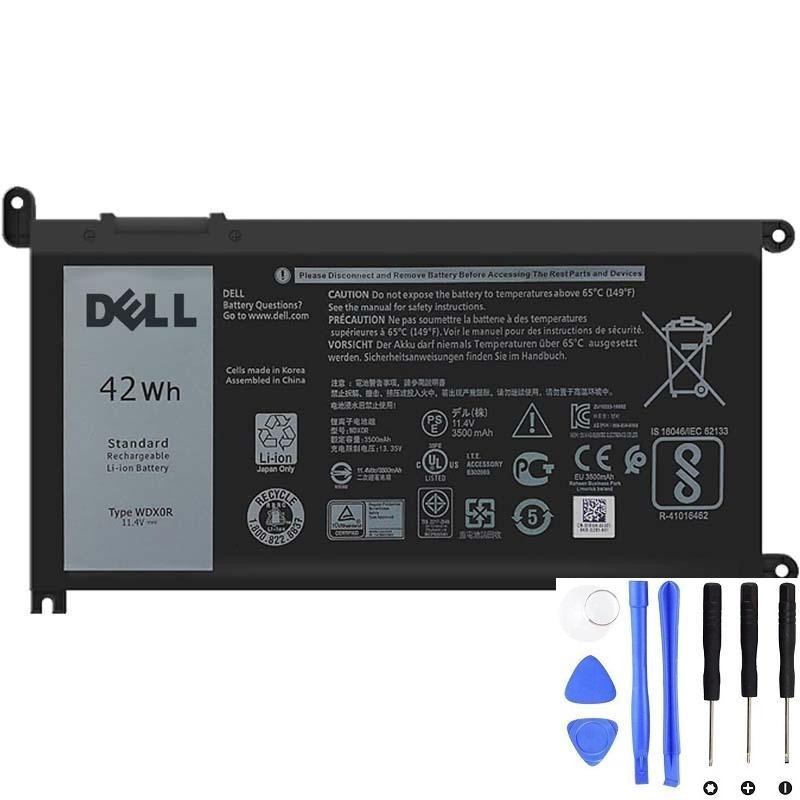
Need a replacement Dell WDX0R battery?
Check the product page for specs and fit.
1) Quick checklist: strongest signs your WDX0R battery is failing
If you have 2 or more of these symptoms, battery replacement is usually the best fix:
- Runtime dropped sharply (hours → less than 30–60 minutes)
- Battery % jumps (e.g., 45% → 15% suddenly) or the % is clearly inaccurate
- Random shutdowns even when battery shows charge remaining
- Only works on AC power (unplugging the charger shuts it off)
- Charging problems (“plugged in, not charging”, charging stuck at a certain %)
- System warnings about battery health or replacement
- Swelling (bottom cover bulging, touchpad lifting, chassis gaps)
Safety note: If you suspect swelling, stop using the laptop on battery power and avoid pressing on the case. A swollen battery should be replaced as soon as possible.
2) Confirm with a Windows battery report (best quick proof)
A battery can still charge to “100%” but hold far less energy than when new. The Windows battery report shows your battery’s real usable capacity today.
How to generate the report
- Right-click Start → Terminal (Admin) or Command Prompt (Admin)
- Run this command:
powercfg /batteryreportOpen the report and look for:
- DESIGN CAPACITY (what it was when new)
- FULL CHARGE CAPACITY (what it can hold now)
- CYCLE COUNT (if shown)
How to interpret it
- Healthy: Full Charge Capacity is close to Design Capacity (minor drop is normal).
- Worn but usable: around 70–85% of design capacity (shorter runtime, may still be stable).
- Replace recommended: often when it drops below roughly 60–70%, or when you have shutdowns/percentage jumps even if capacity looks “okay”.
Tip: Capacity alone isn’t everything. A battery can show “decent” capacity but still fail under load (causing sudden shutdowns).
3) Run Dell diagnostics (another strong confirmation)
Dell laptops typically include built-in diagnostics that can test the battery and power system.
- Restart the laptop
- Press F12 at boot to open the one-time boot menu
- Select Diagnostics (often called ePSA or SupportAssist Pre-boot System Assessment)
- Run the test and review battery-related results
If diagnostics reports battery health issues (for example “battery end of life” or repeated failures), replacement is usually the correct solution.
4) “Is it the battery… or the charger?” (avoid replacing the wrong part)
Before you conclude it’s the WDX0R battery, do these quick checks:
- Try a known-good compatible charger (if possible). A weak or incorrect adapter can cause slow charging or charging refusal.
- Check the charging port for looseness, dirt, or intermittent contact (charging starts/stops when the plug moves).
- Compare behavior on AC vs battery:
- Stable on AC but unstable on battery → battery is the top suspect.
- Unstable on both AC and battery → investigate charger/port, overheating, or system stability.
5) Why these symptoms happen (simple explanation)
- Fast drain: the battery’s usable capacity has decreased over time.
- Percentage jumps: cell imbalance or fuel-gauge drift causes inaccurate readings.
- Sudden shutdown: voltage drops under load; the laptop powers off to protect itself.
- Stuck at 80–90%: could be a health feature/charge limit, or a battery that can’t reach full capacity.
- “Plugged in, not charging”: can be a power/charger detection issue, a battery protection state, or a failing pack.
6) When replacement is the best option
Most users replace the WDX0R battery when one of these is true:
- They need reliable mobile use again (school, work, travel).
- Battery report shows a large capacity drop and runtime is no longer acceptable.
- There are stability problems (shutdowns, percentage jumps, charging errors).
- There are safety signs (swelling, abnormal heat, odor).
7) FAQ
- My battery report doesn’t look terrible, but the laptop still shuts down—why?
A worn battery may still show okay capacity but can’t deliver stable power during spikes (CPU/GPU load). Shutdowns and % jumps are strong failure signs. - Should I calibrate the battery?
Calibration can improve percentage accuracy, but it won’t restore lost capacity. If you have shutdowns, swelling, or repeated warnings, replacement is the better choice. - How do I know I’m buying the correct battery?
Match the battery part number (WDX0R) and confirm the physical connector/shape matches your original battery.
Ready to replace your Dell WDX0R (42Wh) battery?
If you’re seeing fast drain, random shutdowns, inaccurate battery percentage, or failed diagnostics, replacing the battery is usually the fastest and most reliable fix.