This guide is for HP batteries labeled L96887-422 and often annotated on the sticker as
“PL; LGC NCM 515974, 3.72Ah (Renesas)”. We explain how this assembly relates to the
HW03XL 41.04Wh form factor, how to verify compatibility, install it safely, run a Windows battery
report, tune BIOS “Battery Health” settings, and fix common charging issues.
Buy HP HW03XL 41.04Wh →
Skip to Installation
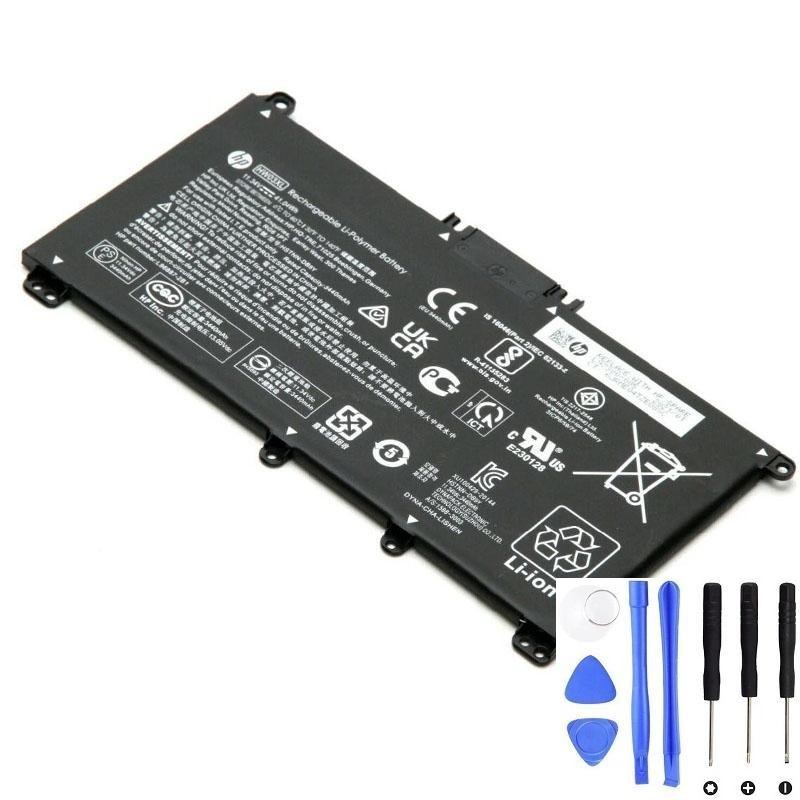
What is L96887-422, and how does it relate to HW03XL?
L96887-422 is an HP spare/assembly identifier you may see on the battery sticker. The same label often
includes “PL; LGC NCM 515974, 3.72Ah (Renesas)”. In many units, this assembly corresponds to an
HW03XL internal 3-series (3S) lithium-ion pack with a typical rating around
41.04Wh. Batch-to-batch markings can vary slightly; always use voltage + connector + outline
as your final compatibility gate.
Note: Actual supported laptop models depend on the seller’s compatibility list. Always check the product page before ordering.
Key specs & label decoded
| Item | Typical value / meaning | Why it matters |
|---|---|---|
| HP spare / assembly | L96887-422 | HP internal identifier; commonly maps to HW03XL form |
| Battery type | HW03XL (internal 3-cell / 3S) | Determines footprint, screw holes, connector position |
| Energy | ≈ 41.04Wh | Impacts runtime; higher Wh → longer on-battery use (same voltage & fit) |
| Nominal voltage | ~11.1V / 11.4V (3S family) | Must match your original battery’s voltage family; do not mix with 15.2/15.4V packs |
| Label snippet | PL; LGC NCM 515974, 3.72Ah (Renesas) | LGC (LG Energy Solution) NCM cells; ≈3.72Ah → ≈41Wh at ~11.1/11.4V; Renesas often refers to the fuel-gauge/management IC |
| Connector & fit | Same as original | Ensures proper detection, charging, and safe mechanical fit |
How to confirm compatibility (part number, voltage, connector, fit)
- Read your sticker: Power off, unplug AC, remove the bottom cover, and note your battery’s type (e.g., HW03XL), voltage, and capacity.
- Match the voltage family: Keep within the same 3S (~11.1/11.4V) family; do not substitute a 4S (15.2/15.4V) pack.
- Compare the outline: Screw holes, connector location, and overall shape should mirror your original.
- Use the seller’s model list: Cross-check your exact SKU/model on the product page before buying.
Quick link: HP HW03XL 41.04Wh →
HP original vs third-party: which should you buy?
| Aspect | OEM (HP) | Reputable third-party |
|---|---|---|
| Price | Higher | Lower to mid |
| Spec match | Exact by design | Verify voltage/connector/fit carefully |
| Warranty | Official policy | Look for 12-month+ coverage |
| Availability | Older models may be scarce | Often broader coverage for legacy SKUs |
Takeaway: OEM is the lowest-risk path. A quality third-party is excellent value if it truly matches voltage, connector, and fit—and includes a clear warranty and returns.
Installation steps (typical internal 3-cell HP)
- Shut down & discharge: Unplug AC; hold the power button 10–15s to drain residual charge.
- Remove bottom cover: Track screw lengths/positions; use a plastic pick to release clips (avoid metal prying).
- Disconnect the battery: Pull the connector by its housing, not the wires.
- Swap the pack: Remove the old battery; place the new HW03XL 41.04Wh; align screw holes; fasten gently.
- Reconnect & reassemble: Seat the connector fully; close the chassis; reinstall screws.
- Power on & verify: Attach AC; boot to Windows; confirm the battery is detected and charging.
If the old pack is swollen or water-damaged, stop and seek professional service.
After installation: Windows battery report & BIOS “Battery Health”
Generate a Windows battery report
- Open an elevated Command Prompt (Run as Administrator).
- Run
powercfg /batteryreportand open the generated HTML file (path appears in the console). - Compare Design Capacity vs Full Charge Capacity, and check Cycle Count.
Enable longevity-friendly charging
- Many HP systems provide Battery Health Manager (in BIOS/UEFI). Choose a mode that reduces time at 100% when plugged in most of the day.
- Keep ventilation clear; heat is the #1 enemy of lithium-ion longevity.
“Plugged in, not charging” — quick fixes
- Adapter sanity check: Use a correct-wattage HP charger; inspect the DC-in port/cable for debris or bent pins.
- Reseat the connector: Power off; open bottom cover; firmly reseat the battery cable.
- Firmware & drivers: Update BIOS, chipset, and power management for your exact model.
- Windows battery drivers refresh: Device Manager → Batteries → uninstall “Microsoft AC Adapter” and “Microsoft ACPI-Compliant Control Method Battery” → reboot.
- EC reset: With AC unplugged, hold the power button 10–15s, reconnect AC, and test.
If issues persist, the DC-in jack or charging IC may require professional diagnosis.
Swelling, safety, recycling & shipping
- Swollen, smelly, or hot at idle? Power down immediately. Do not puncture, compress, or continue charging. Replace safely.
- Recycle properly: Use local e-waste/battery collection points or retailer take-back schemes. Never bin lithium batteries.
- Shipping: Lithium batteries are regulated. Carriers generally require compliant, undamaged batteries that meet tests like UN 38.3, with proper packing/marking. Damaged/swollen batteries are prohibited.
FAQ
Are 11.1/11.4V and 15.2/15.4V batteries interchangeable?
No. These are different voltage families (3S vs 4S). Always match the nominal voltage printed on your original label.
Do I need to “calibrate” a new battery?
Modern packs don’t need routine deep cycles. After installation, let it reach 100% once while idle. If the gauge seems off later, do one gentle cycle (≈20–30% → 100%). Avoid frequent 0–100% cycling.
Does staying plugged in all day harm the battery?
Being plugged in isn’t harmful by itself; heat + long periods at 100% accelerate aging. Enable Battery Health/Adaptive charging and keep the laptop cool.
Where can I buy the correct pack?
Here’s a listing with clear specs and images:
HP HW03XL 41.04Wh product page •
Full-size image.