Your Inspiron 15 Series 7548 (Reg Model P41F) shipped with an internal Dell Type D2VF9 battery rated at 43Wh, 11.1V. This guide shows how to confirm compatibility, choose the right replacement, install it safely, and verify the result.
Buy D2VF9 43Wh Battery →
Skip to Installation
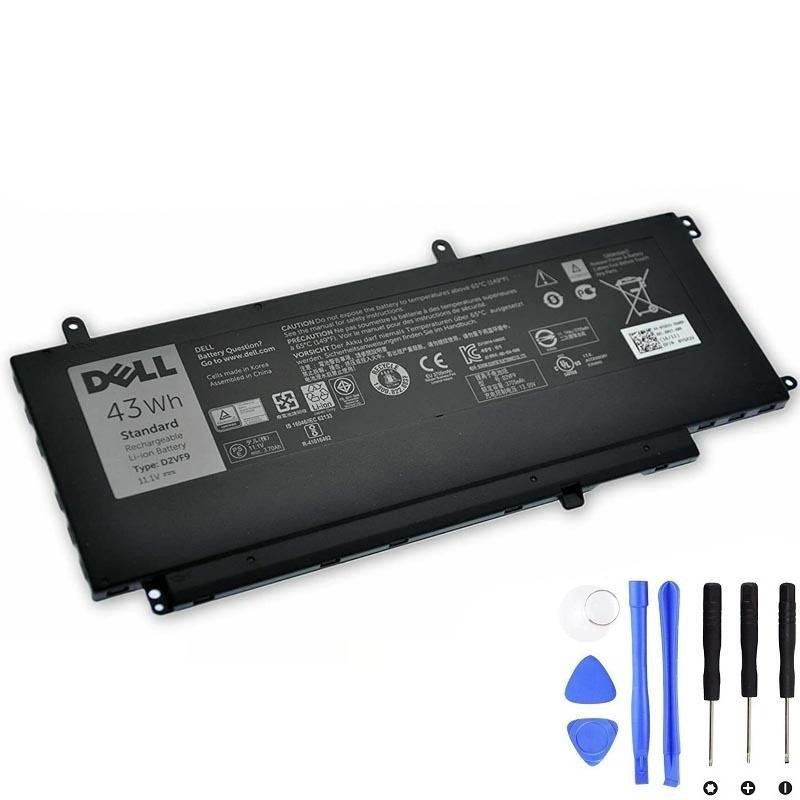
At-a-glance: what to know
- Original pack: Dell Type D2VF9, 43Wh, 11.1V
- Model fit: Inspiron 15 Series 7548, Regulatory Model P41F
- Battery style: Internal, screw-mounted (user-replaceable with care)
- Runtime: Varies with workload/brightness; restoring a fresh 43Wh pack typically brings back “as-new” runtime
How to confirm compatibility
- Shut down the laptop and unplug the AC adapter.
- Remove the bottom cover (see tool list below) to access the battery label.
- Verify the label shows Type D2VF9 and 11.1V nominal voltage.
- Match the Type, Voltage, and connector when ordering a replacement.
Tip: Always match voltage printed on your original pack; don’t mix 11.1V and 15.4V families.
Key specs (D2VF9)
| Parameter | Detail | Why it matters |
|---|---|---|
| Type | D2VF9 | Ensures correct footprint/connector for Inspiron 15 7548 |
| Capacity | 43Wh | Determines runtime (higher Wh = longer use between charges) |
| Voltage | 11.1V | Must match system design; do not substitute different nominal voltages |
| Chemistry | Li-ion | Modern standard for laptops; treat with proper safety |
| Mounting | Internal, screw-mounted | Requires bottom cover removal; straightforward with the right tools |
Tools you’ll need
- Small Phillips screwdriver (PH0/PH00)
- Torx driver (often T5/T6) — use what matches your screws
- Plastic opening pick/spudger (avoid metal prying)
- ESD strap or at least a static-safe work surface (recommended)
Step-by-step installation
- Power off and unplug AC.
- Remove all bottom screws; note positions/lengths. Pry the cover carefully with a plastic pick.
- Disconnect the battery cable from the system board by pulling the connector (not the wires).
- Unscrew the old battery and lift it out gently.
- Place the new D2VF9 (43Wh, 11.1V) pack, align screw holes, and secure it.
- Reconnect the battery cable firmly; check that the connector is fully seated.
- Reinstall the bottom cover and screws; ensure no gaps or pinched cables.
- Connect AC and power on. Confirm Windows shows charging and the battery is detected.
Post-install checks (battery report & BIOS)
Generate a Windows battery report
- Open an elevated Command Prompt (Run as Administrator).
- Run
powercfg /batteryreportand open the generated HTML (path is shown in the console). - Compare Design Capacity vs Full Charge Capacity; verify the system recognises the new pack.
Set charging behaviour
In BIOS/UEFI (if available), choose a mode that reduces time at 100% when mostly on AC to slow long-term wear.
“Plugged in, not charging” — quick fixes
- Adapter check: Use a Dell-rated charger with correct wattage; inspect the DC-in port/cable.
- Reseat the battery: Power down, reopen, reseat the connector firmly.
- Update firmware/drivers: BIOS and chipset for your exact 7548 SKU.
- Windows drivers reset: In Device Manager → Batteries, uninstall “Microsoft AC Adapter” and “Microsoft ACPI-Compliant Control Method Battery”, then reboot.
- Embedded controller reset: With AC unplugged, hold the power button 10–15s, reconnect, and test.
FAQ
Are 11.1V and 15.4V batteries interchangeable?
No. Always match the nominal voltage shown on your original label (11.1V for the D2VF9 in this platform).
Do I need to “calibrate” the new battery?
Not like older chemistries. After install, let it reach 100% once while idle. If the gauge seems off later, do one gentle cycle (down to ~20–30%, then back to 100%). Avoid routine deep cycles.
Does staying plugged in harm the battery?
Being plugged in isn’t bad by itself; heat + long periods at 100% accelerate wear. Keep the laptop cool and enable longevity-friendly charging if available.
What if the old battery is swollen?
Power down and replace immediately. Do not puncture or compress a swollen pack. Recycle via an authorised e-waste channel.
Where to buy
Ready to restore runtime? Here’s a compatible listing with clear specs and photos: