Whether your G15 5520 drains too fast on battery, loses percentage in sleep, or even drops while plugged in during games, this guide covers every common reason and the practical fixes that work. If your pack is worn, we also recommend a verified replacement—the 86Wh 69KF2—to restore runtime and stability.
Jump to Fixes ↓
Skip to: Reliable 86Wh Replacement →
Safety note: if the battery looks swollen or the chassis is bowing/lifting at the trackpad, stop using it and replace the pack.
Quick Answers (TL;DR)
- On-AC drain during heavy load: ensure the correct OEM adapter (many configs need high wattage) and good cooling; extreme spikes can briefly pull from the battery.
- Fast battery drain on desktop use: check background apps, display brightness/refresh rate, and hybrid GPU mode.
- Sleep/standby drain: disable wake tasks, use Modern Standby wisely, and check USB power to external devices.
- Worn battery: generate a Battery Report; if Full Charge Capacity is far below Design, replacement fixes the root cause.
Symptoms → Likely Causes → First Fix
| Situation | Why it happens | Try this first |
|---|---|---|
| Battery % drops while gaming on AC | High power spikes exceed adapter output; thermals cause throttling/inefficiency | Use the correct OEM adapter (check wattage for your config), improve cooling, reduce extreme turbo targets |
| Rapid drain in light use | High screen brightness/refresh rate; background apps; dGPU active | Lower brightness to ~40–60%; set 60–90Hz or DRR; limit background apps; enable hybrid/Optimus |
| Big overnight drop in sleep | Modern Standby tasks, USB power to peripherals, network activity | Use Hibernate for long breaks; disable wake timers; unplug accessories |
| Shuts off around 20–40% | Battery wear or gauge desync (EC/firmware) | Run a calibration cycle; if health is low, replace the battery |
Step-by-Step Fixes (Do these in order)
1) Verify the AC Adapter & Port
- Use the OEM-rated wattage for your G15 5520 configuration (many gaming configs require high-watt adapters). Lower-watt bricks can power the system but won’t charge under load.
- Connect directly to the wall (avoid low-quality strips/docks) and check for a solid adapter LED.
2) Update BIOS/UEFI & Drivers
- Apply the latest BIOS, chipset, GPU, and power management drivers (via Dell’s update utility or support page).
- Firmware updates often improve charge control and sleep behavior.
3) Choose Sensible Performance Targets
- Extreme turbo power limits boost FPS but raise power spikes and heat. Consider a slightly reduced performance preset when on AC for long sessions.
- Keep vents clear; use a cooling pad for sustained loads.
4) Tune Display Power
- Lower Brightness to a comfortable minimum.
- Use 60–90Hz or Dynamic Refresh Rate for web/office days; reserve 120Hz+ for gaming.
5) Control Background & Startup Apps
- Windows: Settings → System → Power & battery → Battery usage to identify drains.
- Disable unneeded startup items and overlays; close game launchers when not in use.
6) Optimize Sleep vs Hibernate
- For breaks over 2–3 hours, prefer Hibernate to avoid Modern Standby drain.
- Disable wake timers and disconnect USB devices that draw power while asleep.
7) Calibrate the Gauge (If Readings Seem Wrong)
- Charge to 100% and keep it on AC for 30–60 minutes.
- Use on battery down to ~10–15% (or until the system sleeps).
- Recharge to 100% without interruption. Recheck behavior.
8) Replace a Worn Battery
If the Battery Report shows low Full Charge Capacity vs Design, or you see sudden drops/blackouts, replacing the pack is the most reliable fix. See the verified option below.
Check Battery Health with Windows Battery Report
- Open Command Prompt (Admin).
- Run:
powercfg /batteryreport - Open the generated HTML path shown in the console.
- Compare Design Capacity vs Full Charge Capacity. A large gap indicates wear.
Keep a copy before/after tweaks or replacement to measure improvement.
Windows Settings That Matter
Power Mode
Settings → System → Power & battery → choose a mode. Use Best power efficiency on the go; Balanced/Best performance on AC.
Energy/Battery Saver
Enable manually or auto-enable at a chosen percentage to limit background drains and extend runtime.
Graphics
If available, use hybrid/Optimus for light tasks to keep the dGPU off; force dGPU only when needed.
Thermals & Charging Efficiency
High temperatures reduce charge efficiency and battery longevity. Keep fans/vents clear, avoid soft surfaces that block airflow, and consider elevating the rear of the chassis. Re-paste and deep maintenance should be done by experienced users only.
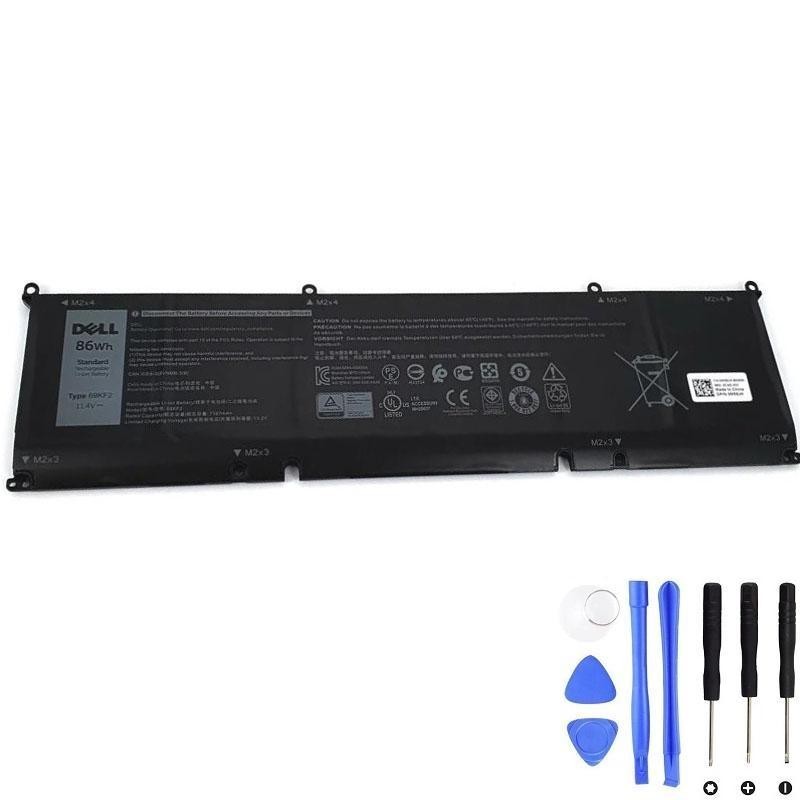
Reliable Replacement: 86Wh 69KF2 (Restore Runtime)
When wear is the root cause, a fresh pack instantly restores usable runtime and stabilizes behavior under load. The 69KF2 86Wh is a common fit for many Dell G15 5520 configurations. Always verify by checking the label on your original battery and your service manual.
View & Buy — Dell 69KF2 86Wh Battery
- Capacity: 86Wh (high-capacity for longer sessions)
- What you get: verified-compatible pack, warranty, and support
- Tip: after installation, run one calibration cycle to sync the gauge
Important: If your current pack is swollen, discontinue use immediately and replace it. Do not puncture or compress a swollen battery.