The HP Pavilion x360 15-cr0037wm is equipped with an internal lithium-ion battery from the LK03XL family.
Over time, this battery loses capacity and may need to be replaced.
This guide presents a professional, step-by-step overview of the entire process from problem identification, technical diagnosis,
selection of a compatible replacement (HP spare L09280-855 / LK03XL), installation, and post-installation testing.
1. Initial Symptoms: When to Consider Replacing the Battery
In a typical usage scenario, users begin to notice a degradation in battery performance before complete failure occurs.
Common indicators that the battery in your HP Pavilion x360 15-cr0037wm may require replacement include:
- Rapid battery drain even under light workloads (web browsing, document editing).
- Unexpected shutdowns when the AC adapter is disconnected.
- Windows notifications such as “Consider replacing your battery” or “Battery capacity very low”.
- Status showing “0% (plugged in, not charging)” for extended periods.
These symptoms alone do not definitively confirm battery failure; a structured diagnostic process is recommended
before ordering a replacement component.
2. Diagnostic Procedure: Confirming Battery Failure
Before proceeding with battery replacement, it is advisable to carry out the following diagnostic steps:
-
Verify AC Adapter and Power Source
Confirm that a compatible HP AC adapter is being used (correct voltage and wattage) and test an alternative wall socket if available.
A faulty adapter can mimic battery-related issues. -
HP Hardware Diagnostics
Use HP PC Hardware Diagnostics or HP Support Assistant to run a dedicated battery test.
The tool will typically report the battery status as “OK”, “Calibrate”, or “Replace”. -
Optional: Windows Battery Report
Advanced users may executepowercfg /batteryreportin Windows PowerShell.
This generates a detailed report comparing the original design capacity with the current full charge capacity.
A significantly reduced full charge capacity indicates battery wear. -
Visual Inspection
Any signs of swelling (bulging bottom cover, gaps around the palm rest, or the notebook not sitting flat on a table)
suggest a physically deteriorated battery that should be replaced promptly for safety reasons.
If the above checks consistently point to battery degradation or failure, replacement of the internal battery is the appropriate next step.
3. Identifying the Correct Replacement: L09280-855 and LK03XL
After removing the bottom cover of the HP Pavilion x360 15-cr0037wm, you will typically find an internal battery with a label similar to:
- “Replace with HP spare – L09280-855” (HP spare part number)
- Model: LK03XL (battery family designation)
The HP spare number L09280-855 refers to an internal 3-cell lithium-ion battery from the LK03XL family,
designed for selected HP Pavilion x360 and related models. Typical characteristics include:
- Battery type: Lithium-ion, internal, 3-cell configuration.
- Nominal voltage: approx. 11.4–11.55V.
- Capacity: around 48–52.5Wh, depending on batch and version.
In practice, you should select a high-quality replacement battery that clearly specifies compatibility with:
HP Pavilion x360 15-cr series, LK03XL and HP spare L09280-855.
Professional Replacement Option for HP Pavilion x360 15-cr0037wm
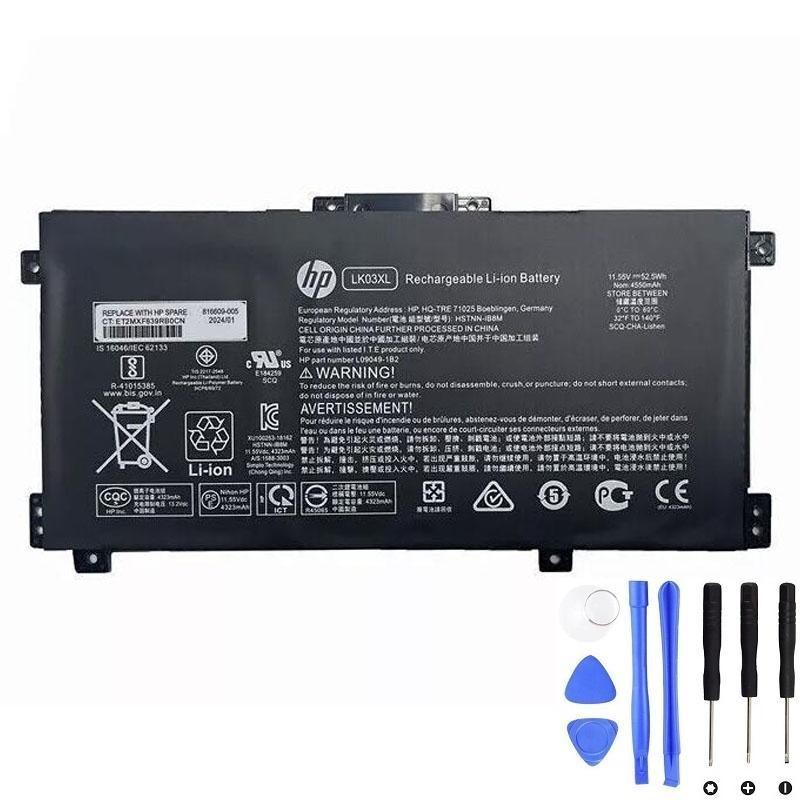
View LK03XL / L09280-855 Compatible Battery
This LK03XL battery is designed as a compatible replacement for HP Pavilion x360 15-cr series devices
and replaces HP spare L09280-855.
4. Pre-Installation Preparations
Once a suitable replacement battery has been selected and ordered, the following preparations are recommended
before disassembling the notebook:
- Data backup – Back up all critical data to external media or cloud storage.
- System shutdown – Shut down Windows completely; do not use Sleep or Hibernate modes.
- Power disconnection – Unplug the AC adapter and remove any USB devices or SD cards.
- Residual power discharge – Press and hold the power button for 10–15 seconds to discharge remaining power.
- Tools – Prepare a small Phillips screwdriver, a plastic pry tool or guitar pick, and (if available) an anti-static wrist strap.
If your device is still covered by an HP onsite or carry-in warranty, review the warranty conditions.
Independent hardware intervention may affect coverage, depending on regional policies.
5. Battery Replacement Procedure for HP Pavilion x360 15-cr0037wm
The following is a generalised procedure suitable for experienced users or technicians.
Always refer to a service manual or a detailed model-specific guide where available.
-
Remove the bottom cover
Place the notebook upside down on a clean, soft surface. Remove all visible screws from the bottom panel.
Some screws may be concealed under rubber feet or labels.
Using a plastic pry tool, carefully release the retaining clips around the perimeter and lift off the cover. -
Identify the existing battery
The internal battery is a flat, rectangular pack occupying a substantial part of the chassis.
The label should indicate LK03XL and reference L09280-855. -
Disconnect the battery connector
Gently pull the battery connector straight out from the motherboard header, gripping the plastic housing rather than the cables. -
Remove the battery
Unscrew all screws securing the battery to the chassis.
Lift the battery carefully, ensuring no cables are trapped beneath it. -
Install the new LK03XL / L09280-855 compatible battery
Position the new battery in the same orientation as the original unit.
Align the screw holes and route the cable naturally towards the connector on the motherboard. -
Secure and reconnect
Fasten the screws to secure the battery in place.
Reconnect the battery cable, confirming that the connector is fully inserted and properly aligned. -
Reinstall the bottom cover
Refit the bottom panel, press gently around the edges until all clips are engaged, and reinstall all screws.
6. Post-Installation Testing and Calibration
After the hardware replacement has been completed, the following verification steps are recommended:
-
Initial power-on
Connect the original or a compatible HP AC adapter and power on the notebook.
Confirm that the system boots correctly into Windows. -
Battery status verification
In Windows, select the battery icon in the system tray and confirm that a realistic percentage is shown
and that the status indicates “Plugged in, charging” when the adapter is connected. -
Run HP battery diagnostics
Re-run the HP battery test via HP PC Hardware Diagnostics or HP Support Assistant.
A healthy replacement battery should be reported as “OK”. -
Optional: Battery calibration
To improve the accuracy of the charge percentage reporting:- Charge the battery to 100%.
- Use the notebook on battery power until the charge drops to approximately 10–20%.
- Recharge to 100% without interruption.
7. Troubleshooting After Replacement
If issues persist after installing the new battery, consider the following troubleshooting points:
-
The notebook does not power on
Verify that the battery connector is fully inserted and that all internal cables are correctly routed.
Perform a hardware reset by disconnecting the AC adapter, pressing and holding the power button for 15–20 seconds,
reconnecting the adapter, and then attempting to power on. -
Battery not charging or stuck at a fixed percentage
- In Device Manager → Batteries, uninstall “Microsoft ACPI-Compliant Control Method Battery” and restart.
- Update BIOS and chipset drivers from HP’s support resources for the 15-cr0037wm.
- Confirm that the AC adapter is fully compatible and functioning correctly.
-
Battery life below expectations
Newly installed batteries may require several charge/discharge cycles before Windows reports accurate remaining time.
Additionally, review Windows power plans, background processes, and display brightness,
as these factors significantly influence runtime.
If the problem cannot be resolved through the above measures, contact the supplier’s technical support
and provide screenshots or reports from Windows and HP diagnostic tools to facilitate further analysis.
8. Best Practices for Maximising the Service Life of the New Battery
To ensure long-term reliability and optimal performance of the replacement LK03XL / L09280-855 battery,
the following best practices are recommended:
- Avoid frequent full discharges – Recharging at approximately 15–20% is preferable to repeated 0% discharge cycles.
- Maintain adequate cooling – Keep ventilation openings unobstructed and avoid prolonged use on soft surfaces (beds, cushions).
- Use a high-quality, compatible AC adapter – Substandard power supplies can adversely affect both charging behaviour and battery lifespan.
- Storage recommendations – If the notebook will not be used for several weeks, store it powered off with the battery at approximately 40–60% charge
and in a cool, dry environment.
Conclusion
Replacing the internal battery in an HP Pavilion x360 15-cr0037wm is a structured, manageable procedure when performed correctly.
By systematically identifying symptoms, confirming battery failure, selecting a compatible LK03XL replacement
corresponding to HP spare L09280-855, and following a disciplined installation and test process,
users and technicians can restore original mobile performance and extend the useful life of the device.
For a professionally specified replacement matching these requirements, a dedicated LK03XL battery designed for the HP Pavilion x360 15-cr series is recommended: