Yes. In almost all recent HP Envy and HP Envy x360 models, the battery is not externally removable by sliding a latch,
but it is a serviceable internal component. This means the battery can be replaced by removing the bottom cover,
disconnecting the cable and installing a compatible replacement pack – a standard procedure for technicians and experienced users.
This article provides a professional overview of HP Envy battery replacement: how to check if replacement is necessary,
how to identify the correct battery (for example, the LK03XL / HP spare L09280-855 platform used in many Envy x360 15" models),
and which steps are involved in a clean, safe replacement.
1. Removable vs. Internal Batteries in HP Envy Laptops
Older notebooks used external, “clip-out” batteries: you could unlock the pack with two sliders and remove it in seconds.
Modern HP Envy and Envy x360 systems follow a different design philosophy:
- No external battery bay – The battery is not accessible from the outside, and there are no release latches.
- Internal, screw-mounted pack – The battery is a flat lithium-ion module inside the chassis, fixed with screws.
- Serviceable by opening the bottom cover – Replacement requires removing the base cover and disconnecting a cable.
Therefore, while an HP Envy battery is not “removable” in the classic sense, it is replaceable using standard service procedures
and a compatible replacement battery.
2. When Should You Replace the Battery in an HP Envy?
Before planning a replacement, it is important to confirm that the battery is indeed the root cause of your issues.
Typical indicators include:
- Rapid battery drain even during light workloads (web browsing, office applications).
- Unexpected shutdowns when the AC adapter is disconnected.
- Windows messages such as “Consider replacing your battery” or “Battery capacity very low”.
- Battery indicator stuck at 0% (plugged in, not charging) despite being on the charger.
- Noticeable swelling of the bottom cover or keyboard deck (a possible sign of a swollen battery).
To avoid replacing components unnecessarily, complement these symptoms with a basic diagnostic procedure:
- Check the AC adapter – Ensure you are using a compatible HP charger (correct voltage and wattage) and test another power outlet.
- Run HP battery diagnostics – Use HP PC Hardware Diagnostics or HP Support Assistant to run a battery test and review the result (OK, Calibrate, Replace).
- Optional: Windows battery report – Running
powercfg /batteryreportin PowerShell provides a detailed report on design vs. current full-charge capacity.
If diagnostics clearly indicate wear or failure, replacing the internal battery is the appropriate next step.
3. Identifying the Correct Battery for Your HP Envy
HP Envy laptops span multiple generations and sizes (13", 15", 17"), so not all devices use the same battery model.
Correct identification is essential for a safe and reliable replacement. Proceed as follows:
-
Determine the exact product number
Use HP Support Assistant or press Fn + Esc on many HP notebooks to display the product name and product number
(for example: HP Envy x360 15-cr0XXX, 15-cn0XXX, 17-aeXXX, etc.). -
Consult the Maintenance and Service Guide
Search for “Maintenance and Service Guide” together with your product number. HP’s official guide lists the supported batteries and HP spare part numbers. -
Check the label on the existing battery (if the notebook is already open)
After safely removing the bottom cover, note the information printed on the battery:- The model family (e.g., LK03XL).
- The HP spare number (e.g., L09280-855, L09281-855, etc.).
- The rated voltage and capacity (Wh).
Many 15" and 17" HP Envy x360 and closely related Pavilion x360 models use the LK03XL internal battery platform,
associated with HP spare numbers such as L09280-855.
If your battery label shows these identifiers, you can choose a high-quality LK03XL replacement pack with matching specifications.
4. Example: LK03XL / L09280-855 Replacement for HP Envy x360 / Pavilion x360 15-cr
For Envy x360 15" and certain Pavilion x360 15-cr configurations that use the LK03XL platform,
a professionally specified replacement restores runtime and reliability while maintaining original voltage and capacity characteristics.
Professional LK03XL Replacement (HP Spare L09280-855) for HP Envy x360 / Pavilion x360 15-cr
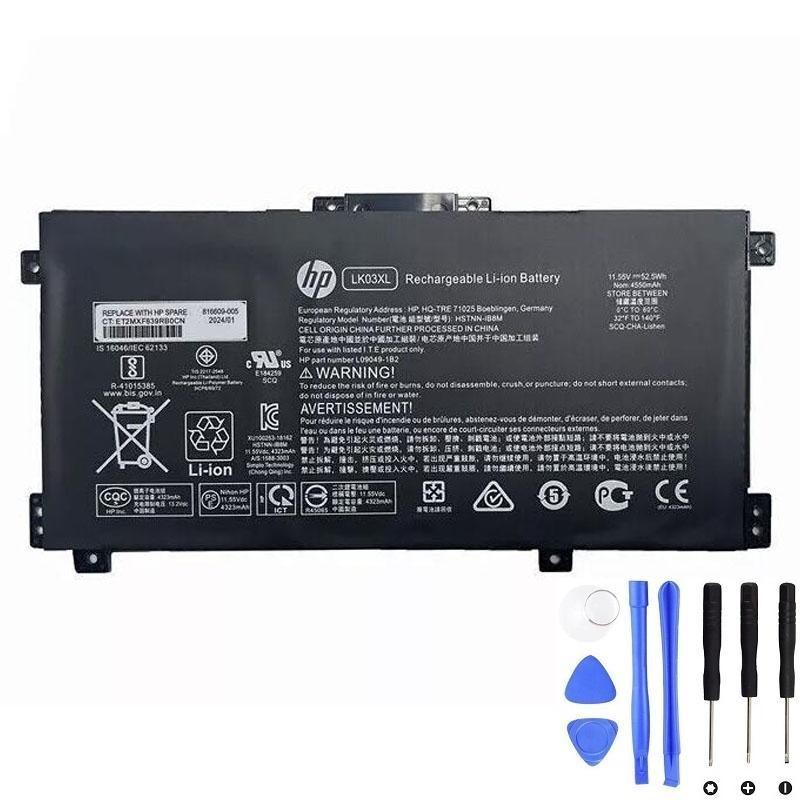
View LK03XL / L09280-855 Compatible Battery
This LK03XL battery is designed as a compatible replacement for selected HP Envy x360 15" / 17" and HP Pavilion x360 15-cr models that use the
LK03XL platform with HP spare numbers such as L09280-855. Always verify compatibility with your exact product number and battery spare code.
5. High-Level Procedure to Replace the Battery in an HP Envy
While specific steps vary by Envy generation, the overall replacement process is similar across most models.
The following is a high-level procedure intended for experienced users and technicians:
-
Preparation
- Shut down Windows completely (do not use Sleep or Hibernate).
- Disconnect the AC adapter and all external devices.
- Press and hold the power button for 10–15 seconds to discharge residual power.
- Work on a clean, static-safe surface; an anti-static wrist strap is recommended.
-
Remove the bottom cover
- Remove all visible screws from the bottom case; some may be hidden under rubber feet or decorative strips.
- Use a plastic pry tool to carefully release the clips around the edges of the cover.
- Lift off the cover to expose the internal components.
-
Disconnect and remove the existing battery
- Locate the internal battery – a flat, rectangular pack beneath the palm rest area or toward the front of the chassis.
- Disconnect the battery cable by pulling on the connector housing, not directly on the wires.
- Remove the screws securing the battery and carefully lift it out of the chassis.
-
Install the new battery
- Place the new, compatible battery (for example, an LK03XL / L09280-855 replacement) in the same orientation as the original.
- Reinstall the screws and reconnect the battery cable, ensuring a firm, correctly aligned connection.
- Reattach the bottom cover, engage all clips and reinstall the screws.
-
Post-installation verification
- Reconnect the AC adapter and power on the notebook.
- Confirm that Windows displays a realistic battery percentage and “Plugged in, charging”.
- Optionally run HP’s hardware diagnostics to confirm the new battery’s status.
If your device is still under HP warranty, check the warranty terms before opening the chassis,
as self-service may affect coverage depending on region and service contract.
6. After Replacement: Calibration and Operating Recommendations
Once the new battery is installed, a few best practices will help ensure stable operation and accurate charge reporting:
- Initial full charge – Charge the battery to 100% before heavy workload or unplugged use.
- Optional calibration cycle – Use the notebook on battery until charge drops to around 10–20%, then recharge to 100% without major interruptions.
- Avoid frequent 0% discharges – For everyday use, try to recharge before the battery is completely depleted.
- Maintain good airflow – Prevent vents from being blocked by soft materials (blankets, cushions), as heat accelerates battery wear.
- Storage – If the Envy will be unused for several weeks, store it powered off at approximately 40–60% charge in a cool, dry environment.
7. Conclusion: Replaceable, but Not “Clip-Out”
To summarise: the battery in an HP Envy or HP Envy x360 laptop is not removable in the traditional, tool-free sense,
but it is replaceable as an internal service part.
By correctly identifying your model, matching the battery platform (for example, LK03XL / HP spare L09280-855 for many Envy x360 15" configurations),
and following a structured replacement procedure, you can restore original battery runtime and extend the operational life of your system.