If your HP laptop uses the HT03XL battery (often listed as L11119-855) and you see messages like “Plugged in, not charging”, the battery percentage won’t increase, or the laptop only runs on the charger, the cause usually falls into one of these categories:
- Power source problem (charger/wattage/cable/port)
- Battery problem (worn-out pack, internal fault, or not detected correctly)
- Firmware/settings issue (BIOS, drivers, or HP charge limit features)
This guide walks you through a clear, practical troubleshooting process that helps you quickly isolate the real reason.
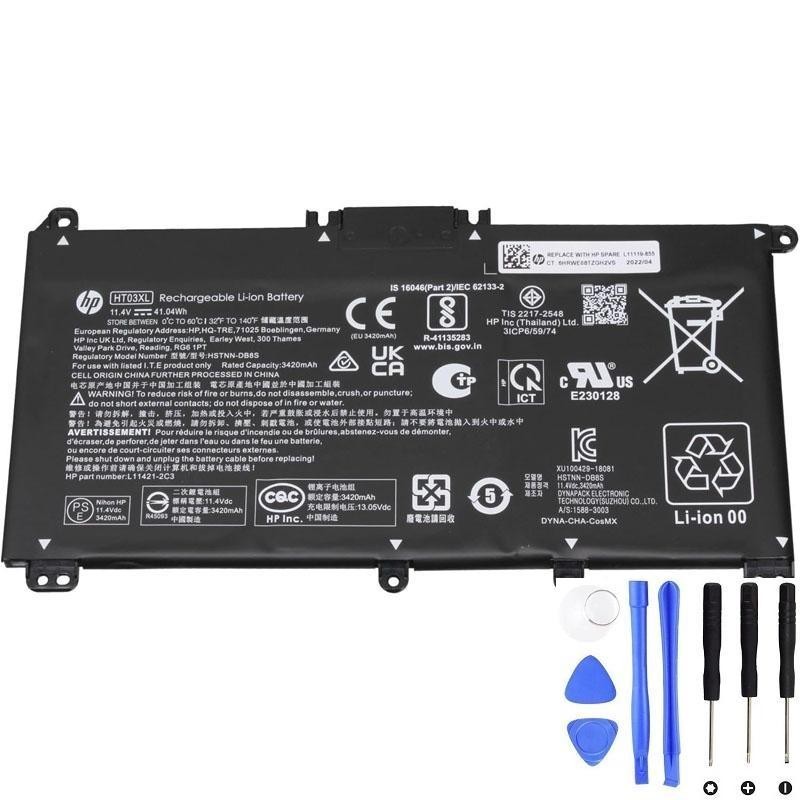
If diagnostics confirm battery failure, replacement is usually the fastest fix.
1) What “not charging” usually looks like
- Battery stays at the same % even after 30–60 minutes plugged in
- Message: “Plugged in, not charging”
- Battery icon shows AC power but no charging animation
- Laptop shuts off immediately when unplugged (battery not supplying power)
2) Step 1 — Check the charger and wattage (most common cause)
HP laptops often require a minimum charger wattage to charge normally. If you use a charger with too low wattage, the laptop may power on but charge slowly or not at all.
- Verify you’re using a compatible HP adapter for your laptop model.
- Check the adapter label for output (example: 19.5V with a certain A/W rating).
- Try another known-good HP charger (if available).
Quick tip: If your laptop performs normally on AC but never charges the battery, the charger may still be “working”, but the system may be refusing to charge due to wattage/identification issues.
3) Step 2 — Check the charging port (loose, damaged, or dirty)
- Does the charging LED flicker when you move the plug?
- Does charging start/stop when the cable is touched?
- Does the connector feel loose in the port?
What to do:
- Inspect the port for lint/dust.
- Try a different wall outlet.
- Test charging with the laptop sitting still on a desk (no cable movement).
If the charge indicator is unstable, the issue may be the port/DC jack or the adapter tip.
4) Step 3 — Do a simple power reset (fixes many “charging stuck” issues)
- Shut down the laptop completely.
- Unplug the charger.
- If the battery is removable (many HT03XL models are internal, so skip removal), remove it if possible.
- Hold the power button for 30 seconds.
- Plug in the charger and power on.
This reset can clear power controller states that sometimes cause “plugged in, not charging”.
5) Step 4 — Check HP charge limit settings (it may be charging “by design”)
Some HP laptops have battery health features that intentionally stop charging at a certain level (for example, 80% or 90%) to extend lifespan.
What to do:
- If your battery is stuck near 80–90%, check BIOS/HP power settings for a charge limit or battery care feature.
- Temporarily disable the limit for testing (if your laptop supports it).
6) Step 5 — Confirm battery health (the HT03XL may be failing)
If the adapter and port are good but the battery still won’t charge, the battery itself may have:
- Severe capacity loss
- Cell imbalance
- Internal protection faults that prevent charging
A) Run Windows battery report
powercfg /batteryreportCompare DESIGN CAPACITY vs FULL CHARGE CAPACITY. A very low full charge capacity strongly indicates end-of-life.
B) Run HP diagnostics battery test
- Restart → press Esc repeatedly (or F2 on many HP models)
- Open diagnostics → run Battery Test
If diagnostics says Weak or Replace, a new HT03XL battery is usually the correct solution.
7) Step 6 — Driver/BIOS issues (especially after updates)
If charging stopped after a Windows update or driver change, try these:
- Device Manager → Batteries → uninstall:
- Microsoft AC Adapter
- Microsoft ACPI-Compliant Control Method Battery
Then restart (Windows will reinstall them automatically).
- Update BIOS and chipset drivers from HP support for your exact laptop model.
8) Urgent safety signs (replace immediately)
Stop using the battery and replace it ASAP if you see:
- Swelling (bottom cover bulging, touchpad lifted, gaps increasing)
- Strong heat near the battery area
- Odor (chemical or burning smell)
9) Quick “most likely cause” summary
- Charges sometimes, flickers, or depends on cable angle: port/connector issue
- Stuck around 80–90%: charge limit feature (settings/BIOS)
- Never charges, battery health very low, diagnostics says Replace: battery end-of-life
- Started after update: driver/BIOS/power controller state
Need a compatible HT03XL (L11119-855) replacement?
If your HP diagnostics indicates battery failure—or the battery won’t charge even after testing the charger and port—replacement is usually the most reliable fix.