Summary Most charging issues on the XPS 15 come down to wattage (needs 130W for full performance), the wrong connector (USB-C vs barrel 7.4 mm / 4.5 mm), a non-e-marked cable (caps at ~60–65W), or settings that intentionally pause charging (Dell Power Manager charge limit at 80%). Start with the quick checks below and make sure your adapter matches your exact model. Dell XPS 15 7590 9500 9510 9520 9530 9550 9560 9570 9575 2-in-1 9530 (End of Life) L501X L502X L521X 15Z L511Z
Recommended chargers for Dell XPS 15
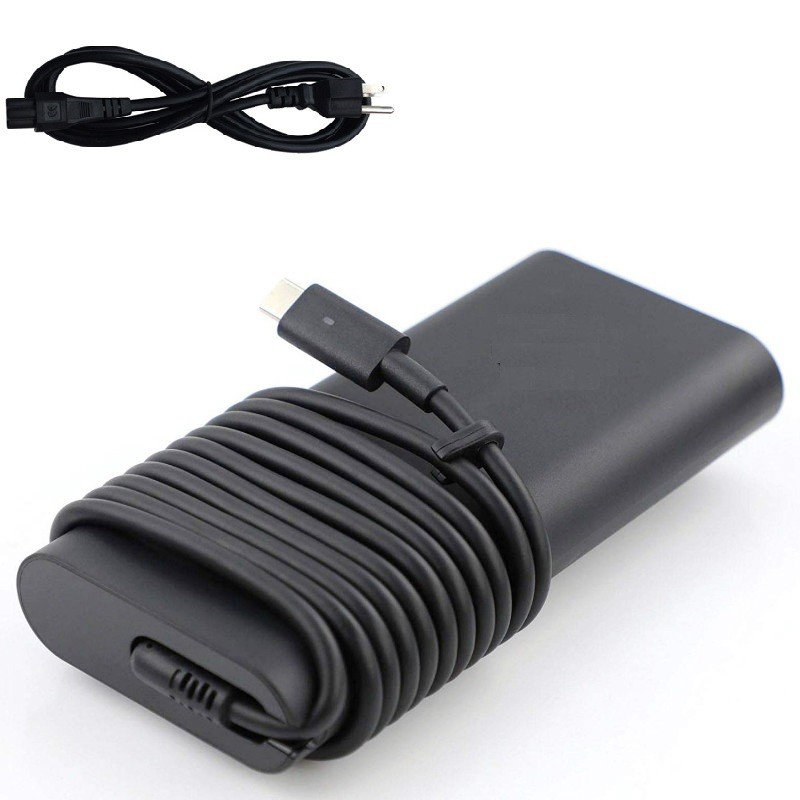

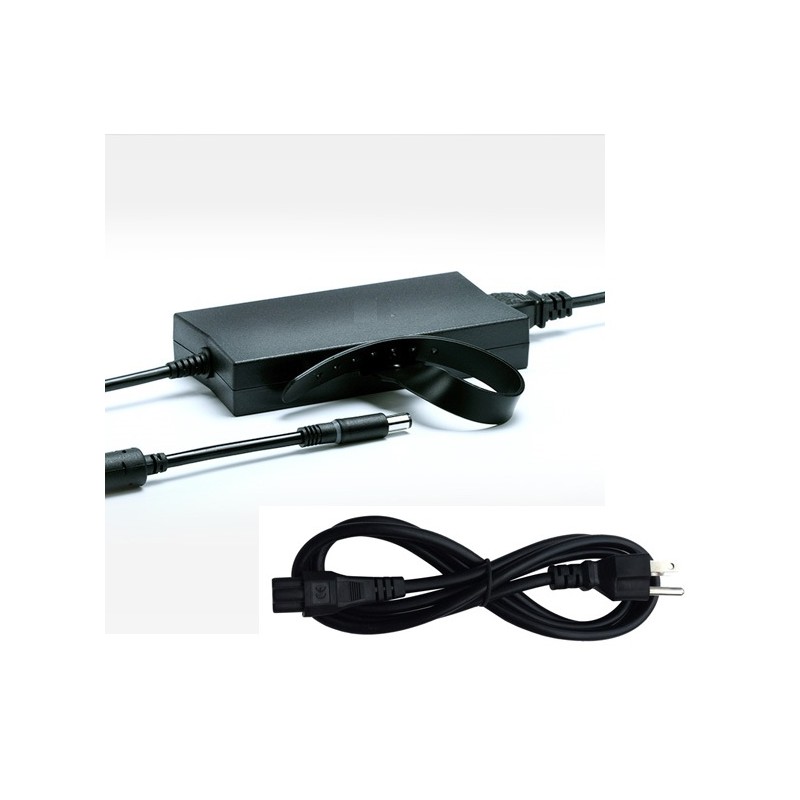
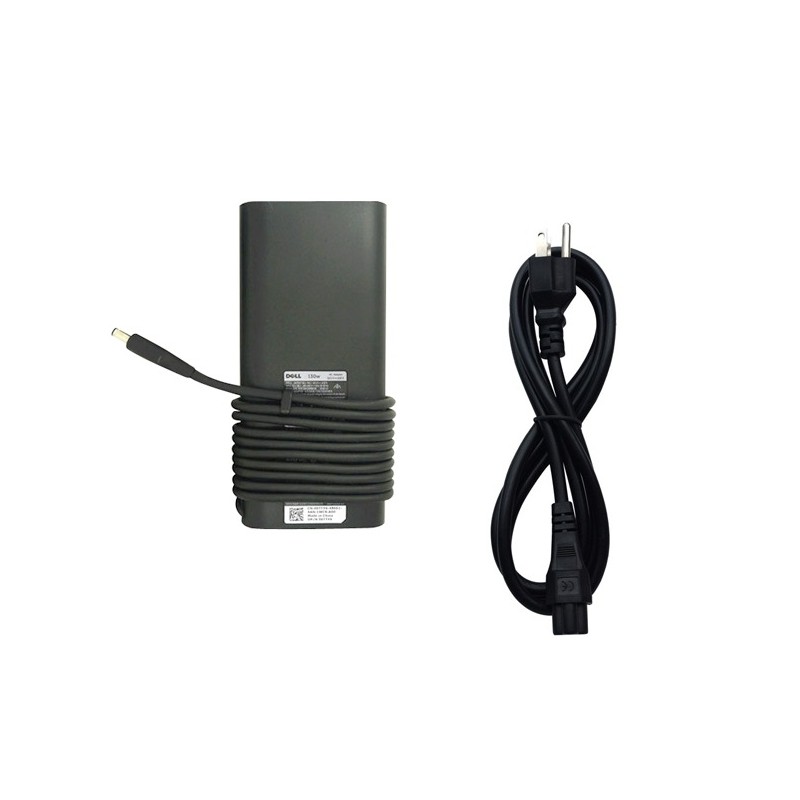
Match your wattage and connector to avoid “adapter not recognized” and “plugged in, not charging”.
Top reasons your XPS 15 won’t charge (but is plugged in)
- Under-wattage or wrong charger. XPS 15 expects up to 130W. A 65–100W USB-C may power the system but pause charging under load.
- USB-C cable can’t carry 5A. Non-e-marked (3A) cables cap at ~60–65W. Use a 5A e-marked cable for 100–130W.
- Wrong connector type. Older XPS 15 uses barrel (7.4 mm or 4.5 mm); newer uses USB-C. A loose barrel tip or wrong size will fail ID detection.
- Dell Power Manager / MyDell charge limit. If “Stop charging at 80%” or “Primarily AC Use” is enabled, Windows may show “plugged in, not charging” at ~80% by design.
- BIOS doesn’t recognize the adapter. In BIOS, if AC Adapter Type shows Unknown or lower wattage, the laptop will restrict charging.
- Battery wear or protection state. A deeply worn battery (>30–40% wear) may refuse to charge or only trickle-charge.
- Dirty/loose port or damaged DC-in jack. Dust, bent contacts, or a broken center-pin ID line can prevent negotiation.
- Dock/hub power limits. Some USB-C docks provide only 60–90W—fine for light use but insufficient to charge while working.
- Firmware/driver issues. Outdated BIOS, Thunderbolt/USB-C firmware, or ACPI battery drivers can cause mis-reports.
- Temperature window. Charging pauses if the battery is too hot/cold (common after gaming or in a hot bag).
Quick diagnostics (2 minutes)
- LED/BIOS check: Reboot and press F2 (BIOS). On the main page, find AC Adapter Type. If it isn’t the expected 130W, suspect the charger/cable/port.
- Port test: On USB-C models, try the other left-side port and a known 5A cable. On barrel models, gently check for wobble—wrong size = poor contact.
- Settings: Open Dell Power Manager / MyDell → Battery → disable charge limits (e.g., “Stop charging at 80%”) and retest.
- Wall power: Plug straight into the wall (no surge strip or dock) and remove all peripherals.
Tip: If Windows reports “plugged in, not charging” near 78–82%, this often means an intentional charge cap is active to extend battery lifespan.
Step-by-step fixes
- Confirm the correct charger:
- XPS 15 9500–9540: use a 130W USB-C charger + 5A e-marked cable.
- XPS 15 9550–7590: use a 130W 19.5V barrel adapter with the correct tip (7.4 mm or 4.5 mm).
- Clean & reseat: Inspect the port for dust, re-plug firmly. Try the other USB-C port (left side) on newer models.
- Disable charge limits: In Dell Power Manager/MyDell, set Battery to Standard or Optimized and turn off any 80% cap.
- Flea-power reset: Shut down, unplug adapter, hold the power button for 30 seconds, then reconnect and boot.
- Driver refresh (Windows): Device Manager → Batteries → right-click Microsoft AC Adapter and Microsoft ACPI-Compliant Control Method Battery → Uninstall device (don’t delete drivers) → Scan for hardware changes or reboot.
- Update BIOS & firmware: Install the latest BIOS and Thunderbolt/USB-C updates from Dell Support for your exact model.
- Run ePSA diagnostics: Restart → F12 → Diagnostics. Look for battery health/adaptor warnings.
- Evaluate battery health: If wear is high or ePSA flags errors, the battery may need replacement.
USB-C caveats specific to XPS 15 (9500–9540)
- Cables matter: Without a 5A e-marked cable, the system won’t pull 100–130W, leading to “not charging” while working.
- Docks aren’t always enough: Many deliver only 60–90W. Connect your 130W charger directly to the laptop to test.
- Charger firmware differences: Third-party 140W PD 3.1 can work, but Dell’s own 130W tends to negotiate most reliably.
Barrel-plug notes (9550–7590)
- Tip size must match: 7.4 mm (large) vs 4.5 mm (slim). A loose/short tip causes Unknown adapter in BIOS and prevents charging.
- 19.5V ≈ 6.7A: Check the label. Lower amps/watts = throttling or no charge.
When to suspect hardware
- BIOS never recognizes the adapter even with a known-good charger and cable → possible DC-in jack or motherboard issue.
- Battery health very poor and ePSA reports failure → consider battery replacement.
Shop the right charger for your XPS 15
Unsure which plug you need? Tell us your exact model (e.g., 9570 or 9530) and we’ll confirm compatibility before shipping.
Need one-to-one help? Leave your XPS 15 model and any BIOS messages (AC Adapter Type) in a comment—we’ll diagnose and point you to the exact charger or next steps.
Free delivery · 1-year warranty · Easy returns